


I have seen the *nix Sysadmins say “GOSH !!! its windows: troubleshooting HMMMM!!!… waste of time …reinstall it ” and “Windows Installation …OHHO…double click >> click on next ..next >>> and FINISH”. A common perception about Windows troubleshooting and software installation, is that there is no “actual” troubleshooting. If anything crashes, just reinstall it.
I have always found it exciting to wander around and explore the darker side of Windows, and believe me…..the ride will certainly thrill you.
This article will introduce you to a variety of tools, to make your life easier with Windows Server administration. We’ll compare each tool/software with UNIX tools, so that System administrators get the most out of it, and perhaps think differently. For some techies, these might just be pieces of junk, but for me they are very useful tools.
Event Viewer
Log Monitoring using Event Viewer of Windows 2000 and Windows XP can help you predict and identify the source/cause of problems. The EventLog service starts automatically when you start/restart the services, of course unless it is disabled in the services.
There are basically three types of logs recorded: Application, System, and Security. All users have access to Application and System logs, but only administrators can view Security logs.

You can see 5 basic types of events Events
* Error : Marked in Red , which gives you an idea of a system/application related error.
* Warning : Marked in Yellow, which helps you predict an error.
* Infomation : Gives you an information about a successful operation like a service restart.
* Success Audit : Gives you information regarding a successful login process.
* Failure Audit : Gives you information regarding a failed security attempt
To view System messages, double click the corresponding event. Take a look at this sample event.
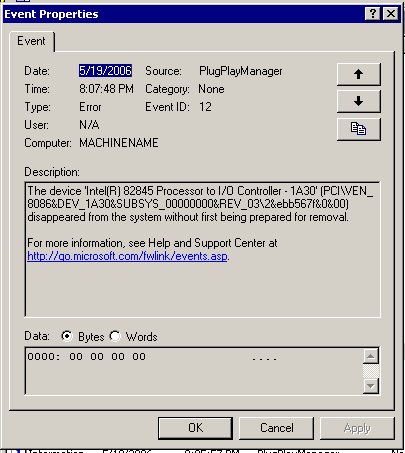
Now all you need to do is lookup eventid.net to find a solution or google your way out. This tool is similar to the ‘perror’ command in UNIX system, where you can look up the error message for more description
Uptime
Finding out Uptime in Windows operating systems is simple using systeminfo.exe. However, it may list out a lot more information than you need. The following is a typical outcome of the systeminfo command.
>br />
Host Name: BOBCARES-L48BSL
OS Name: Microsoft(R) Windows(R) Server 2003, Enterprise Editi
on
OS Version: 5.2.3790 Service Pack 1 Build 3790
OS Manufacturer: Microsoft Corporation
OS Configuration: Standalone Server
OS Build Type: Uniprocessor Free
Registered Owner: bobcares
Registered Organization: bobcares
Product ID: xxxxx-xxx-xxxxxx-xxxxx
Original Install Date: 5/20/2006, 4:09:05 AM
System Up Time: 2 Days, 20 Hours, 12 Minutes, 0 Seconds
System Manufacturer: N/A
System Model: N/A
System Type: X86-based PC
Processor(s): 1 Processor(s) Installed.
[01]: x86 Family 15 Model 1 Stepping 3 GenuineIntel ~
1699 Mhz
BIOS Version: Award Modular BIOS v6.00PG
Windows Directory: C:WINDOWS
System Directory: C:WINDOWSsystem32
Boot Device: DeviceHarddiskVolume1
System Locale: en-us;English (United States)
Input Locale: en-us;English (United States)
Time Zone: (GMT-08:00) Pacific Time (US & Canada); Tijuana
Total Physical Memory: 224 MB
Available Physical Memory: 48 MB
Page File: Max Size: 598 MB
Page File: Available: 200 MB
Page File: In Use: 398 MB
Page File Location(s): C:pagefile.sys
Domain: WORKGROUP
Logon Server: BOBCARES-L48BSL
Hotfix(s): 1 Hotfix(s) Installed.
[01]: Q147222
Network Card(s): 1 NIC(s) Installed.
[01]: Realtek RTL8139 Family PCI Fast Ethernet NIC
Connection Name: Local Area Connection
DHCP Enabled: No
IP address(es)
[01]: 192.168.1.152
Even though this gives you more information than what you are looking for, you may need specific details on why the server was rebooted or gone to a halt. Sometimes, scanning the entire eventviewer may not help you identify the exact reason for the reboot, unless you know that the shutdown event id is 1074.
The tool Uptime.exe will help identify the exact reasons for the server reboot and give you the following command line options.
>br />
Uptime [server] [/s ] [/a] [/d:mm/dd/yyyy | /p:n] [/heartbeat] [/? | /help]
server Name or IP address of remote server to process.
/s Display key system events and statistics.
/a Display application failure events (assumes /s).
/d: Only calculate for events after mm/dd/yyyy.
/p: Only calculate for events in the previous n days.
/heartbeat Turn on/off the system’s heartbeat
/? Basic usage.
/help Additional usage information.
The output shows the entire shutdown history, identifying the reason for the reboot. This tool comes in handy when there are Blue Screen Errors, while referring to an memory location used by hardware drivers
>br />
C:Documents and SettingsAdministratorDesktop>uptime.exe /s
(result truncated)
4/16/2006 3:02:10 AM Shutdown Prior uptime:5d 5h:20m:22s
4/16/2006 3:03:34 AM Boot Prior downtime:0d 0h:1m:24s
5/7/2006 10:47:40 AM Abnormal Shutdown Prior uptime:21d 7h:44m:6s
5/7/2006 10:48:53 AM Boot Prior downtime:0d 0h:1m:13s
5/8/2006 2:09:33 AM Shutdown Prior uptime:0d 15h:20m:40s
5/8/2006 2:11:00 AM Boot Prior downtime:0d 0h:1m:27s
Current System Uptime: 15 day(s), 2 hour(s), 3 minute(s), 29 second(s)
——————————————————————————–
Since 11/30/2005:
System Availability: 99.9904%
Total Uptime: 173d 11h:8m:21s
Total Downtime: 0d 0h:24m:4s
Total Reboots: 19
Mean Time Between Reboots: 9.13 days
Total Bluescreens: 0
This command is more or less similar to the uptime command in the unix systems, but a more flexible version.
Process Tools
The bash/csh shell has always been a positive point for *nix systems, especially the process based commands. Have you ever thought about a substitute of Unix’s ps and kill commands ?.
I present to you the tasklist and the taskkill commands.
>br />
C:Windows>tasklist /?
TASKLIST [/S system [/U username [/P [password]]]]
[/M [module] | /SVC | /V] [/FI filter] [/FO format] [/NH]Description:
This tool displays a list of currently running processes on
either a local or remote machine.Parameter List:
/S system Specifies the remote system to connect to./U [domain]user Specifies the user context under which
the command should execute./P [password] Specifies the password for the given
user context. Prompts for input if omitted./M [module] Lists all tasks currently using the given
exe/dll name. If the module name is not
specified all loaded modules are displayed./SVC Displays services hosted in each process.
/V Displays verbose task information.
/FI filter Displays a set of tasks that match a
given criteria specified by the filter./FO format Specifies the output format.
Valid values: “TABLE”, “LIST”, “CSV”./NH Specifies that the “Column Header” should
not be displayed in the output.
Valid only for “TABLE” and “CSV” formats./? Displays this help message.
Filters:
Filter Name Valid Operators Valid Value(s)
———– ————— ————————–
STATUS eq, ne RUNNING |
NOT RESPONDING | UNKNOWN
IMAGENAME eq, ne Image name
PID eq, ne, gt, lt, ge, le PID value
SESSION eq, ne, gt, lt, ge, le Session number
SESSIONNAME eq, ne Session name
CPUTIME eq, ne, gt, lt, ge, le CPU time in the format
of hh:mm:ss.
hh – hours,
mm – minutes, ss – seconds
MEMUSAGE eq, ne, gt, lt, ge, le Memory usage in KB
USERNAME eq, ne User name in [domain]user
format
SERVICES eq, ne Service name
WINDOWTITLE eq, ne Window title
MODULES eq, ne DLL nameNOTE: “WINDOWTITLE” and “STATUS” filters are not supported when querying
a remote machine.Examples:
TASKLIST
TASKLIST /M
TASKLIST /V /FO CSV
TASKLIST /SVC /FO LIST
TASKLIST /M wbem*
TASKLIST /S system /FO LIST
TASKLIST /S system /U domainusername /FO CSV /NH
TASKLIST /S system /U username /P password /FO TABLE /NH
TASKLIST /FI “USERNAME ne NT AUTHORITYSYSTEM” /FI “STATUS eq running”
For displaying the simple output of task list, all you need to do is execute the command tasklist and you get an output consisting of all the processes running in the server.
Now to kill a process that you don’t want running
C:Windows>taskkill /?
TASKKILL [/S system [/U username [/P [password]]]]
{ [/FI filter] [/PID processid | /IM imagename] } [/T] [/F]Description:
This tool is used to terminate tasks by process id (PID) or image name.Parameter List:
/S system Specifies the remote system to connect to./U [domain]user Specifies the user context under which the
command should execute./P [password] Specifies the password for the given user
context. Prompts for input if omitted./FI filter Applies a filter to select a set of tasks.
Allows “*” to be used. ex. imagename eq acme*/PID processid Specifies the PID of the process to be terminated.
Use TaskList to get the PID./IM imagename Specifies the image name of the process
to be terminated. Wildcard ‘*’ can be used
to specify all tasks or image names./T Terminates the specified process and any
child processes which were started by it./F Specifies to forcefully terminate the process(es).
/? Displays this help message.
Filters:
Filter Name Valid Operators Valid Value(s)
———– ————— ————————-
STATUS eq, ne RUNNING |
NOT RESPONDING | UNKNOWN
IMAGENAME eq, ne Image name
PID eq, ne, gt, lt, ge, le PID value
SESSION eq, ne, gt, lt, ge, le Session number.
CPUTIME eq, ne, gt, lt, ge, le CPU time in the format
of hh:mm:ss.
hh – hours,
mm – minutes, ss – seconds
MEMUSAGE eq, ne, gt, lt, ge, le Memory usage in KB
USERNAME eq, ne User name in [domain]user
format
MODULES eq, ne DLL name
SERVICES eq, ne Service name
WINDOWTITLE eq, ne Window titleNOTE
—-
1) Wildcard ‘*’ for /IM switch is accepted only when a filter is applied.
2) Termination of remote processes will always be done forcefully (/F).
3) “WINDOWTITLE” and “STATUS” filters are not considered when a remote
machine is specified.Examples:
TASKKILL /IM notepad.exe
TASKKILL /PID 1230 /PID 1241 /PID 1253 /T
TASKKILL /F /IM cmd.exe /T
TASKKILL /F /FI “PID ge 1000” /FI “WINDOWTITLE ne untitle*”
TASKKILL /F /FI “USERNAME eq NT AUTHORITYSYSTEM” /IM notepad.exe
TASKKILL /S system /U domainusername /FI “USERNAME ne NT*” /IM *
TASKKILL /S system /U username /P password /FI “IMAGENAME eq note*”
These examples explain the basic usage of the Windows equivalent of the ‘ps’ and the ‘kill’ commands. The Sysinternals website provides a lot more process related tools available freely on the internet.
Try these tools to know it better.
About the author: Samjad works in Bobcares as System Administrator specialising in Windows, IIS environments.


