


507 insufficient storage error explained by our API Integration Support team with clear causes, fixes, and prevention tips.
Why Does the 507 Insufficient Storage Error Happen
A failed upload or update can be frustrating when nothing seems wrong. The 507 Insufficient Storage error appears when the server runs out of space or memory and cannot complete a valid request. This guide explains why it happens and how it affects common server actions.
What Is the 507 Insufficient Storage Status Code?
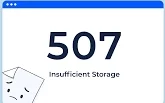 The 507 Insufficient Storage status means the server faces a space or memory issue. The request reaches the server correctly, but the server cannot complete it due to limited resources. This error often shows up during file uploads, updates, or content saves. The server runs out of disk space, memory, or allowed storage, so the action stops before finishing.
Common Situations Where a 507 Error Appears
- Server storage is full: The server has no free disk space left. As a result, it cannot save files, logs, or new data.
- User storage limit reached: Many platforms set storage limits for users. Once the limit is crossed, uploads and saves stop.
Examples include
- Cloud storage accounts that run out of free space
- Email inboxes that cannot receive new messages
- Web hosting plans with fixed storage limits
- APIs that exceed the assigned database space
- High server resource usage: Even when disk space exists, low memory or heavy load can block the request. The server lacks the power to process it.
- WebDAV file actions: In WebDAV setups, actions like uploads or updates fail when the server cannot store the file.
- Application storage limits: Some apps set their own memory or storage caps. When those limits are reached, the app cannot continue.
- Database capacity reached: A full database can stop new records from being saved, even if other parts of the server still have space.
Server errors blocking your API workflows?

Steps That Lead to a 507 Insufficient Storage Error
Step 1: Upload request sent
A user uploads a large file to a cloud storage service. The request looks like this.
PUT /documents/annual-report.pdf HTTP/1.1

Host: cloud-storage.example.com

Authorization: Bearer xyz123

Content-Type: application/pdf

Content-Length: 524288000
The request contains a large PDF file of around 500 MB.
Step 2: Server checks storage
The server receives the request and checks how much free space is available before saving the file.
Step 3: Storage is not enough
The server finds that only about 100 MB of free space remains. This is not enough to store the uploaded file.
Step 4: Server returns 507
Since the file cannot be saved, the server stops the process and sends a 507 Insufficient Storage response.
HTTP/1.1 507 Insufficient Storage

Content-Type: application/json

Retry-After: 7200

{ "error": "storage_quota_exceeded", "message": "You have exceeded your storage quota of 10GB.", "quota_used": 10737418240, "quota_total": 10737418240, "suggested_action": "Please delete some files or upgrade your plan." }
How to Find a 507 Insufficient Storage Issue
Catching this error early helps prevent site downtime. A few focused checks can point to the real cause quickly.
- Watch website performance: Slow pages, broken uploads, or failed updates often hint at storage or memory pressure.
- Check server logs: Error and system logs usually record storage warnings and repeated failures tied to low resources.
- Set up automated alerts: Alerts notify admins when disk space or memory crosses set limits, giving time to act before services stop.
- Use server monitoring tools: Monitoring tools track storage and memory usage in real time and help spot rising usage trends.
These steps make it easier to trace the issue early and keep the server stable without sudden interruptions.
Ways to Avoid a 507 Insufficient Storage Error
Avoiding a 507 error depends on steady checks and smart use of server space. Small actions taken early can prevent major failures later.
Keep track of system health
- Observe site behavior: Upload failures, slow pages, or stuck updates often point to storage pressure.
- Watch resource usage closely: Keep an eye on disk space and memory levels through server dashboards or monitoring tools.
- Get alerts before trouble starts: Set notifications for low storage or memory levels so action can happen early.
- Scan system logs regularly: Logs often show early warnings related to space or resource limits.
Manage storage the right way
- Remove unused files: Delete old backups, temporary folders, and unused data to reclaim space.
- Reduce database size: Clear spam, outdated records, and extra revisions that quietly consume storage.
- Move static files off the server: Store images and static assets on external services to reduce server load.
- Add more space when needed: If usage keeps rising, expanding storage capacity becomes necessary.
- App-level checks: Some apps trigger a 507 error during installs when the storage location is not reachable.
- Confirm storage access: Make sure the target drive stays active and available before installing or updating apps.
- Install on a working drive: If a drive stays offline, reinstall the app on a storage location that is accessible.
[Need assistance with a different issue? Our team is available 24/7.]
Conclusion
The 507 Insufficient Storage Error points to exhausted server space or memory that stops valid requests from completing. Addressing it early through cleanup or resource upgrades helps maintain smooth and reliable service.

