


Backups failing due to disks and volumes discovery failed error, VMware? VMware Support team explains causes, impact, and prevention.
Disks and Volumes Discovery Failed Error in VMware Explained and Prevented
Backup jobs can fail without warning when VMware cannot detect virtual machine disks. The Disks and Volumes Discovery Failed error often shows up during backups or inventory scans and quickly disrupts data protection. If left unchecked, it can lead to missed backups, restore issues, and reduced visibility across your virtual environment.
What is the Disks and Volumes Discovery Failed Error in VMware
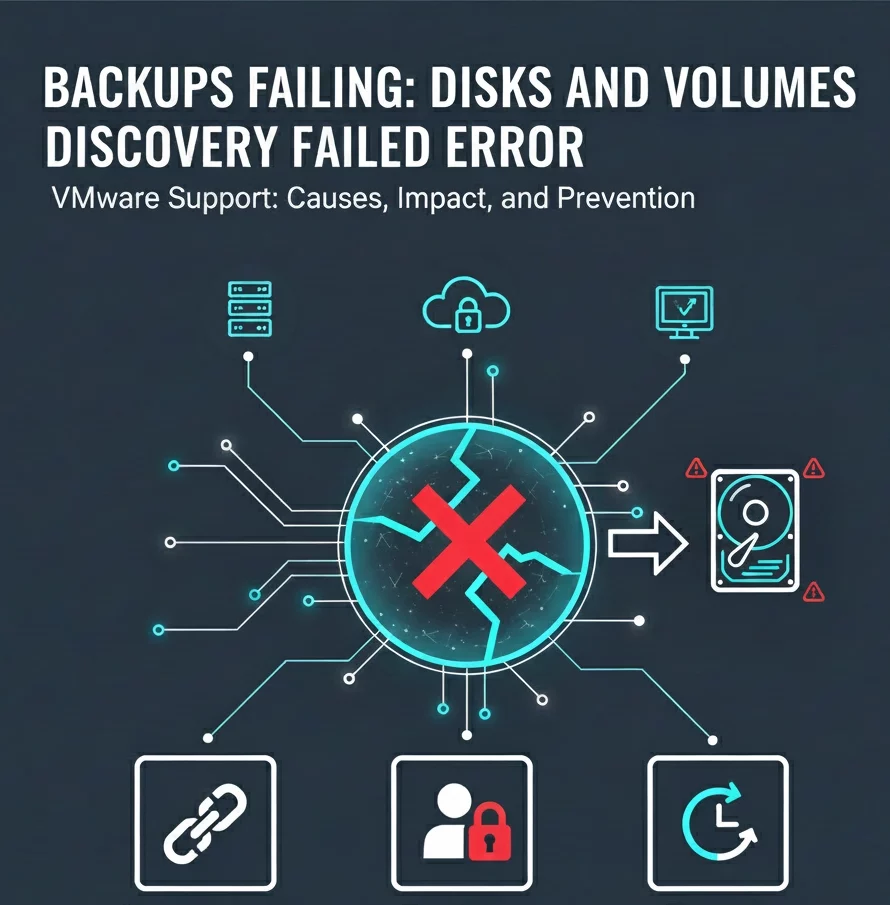
The disk and volume discovery error in VMware appears when the backup system cannot detect or read virtual machine disks during a backup or inventory process. This typically occurs when communication between the backup server and the VMware environment is disrupted due to slow responses, network issues, permission limitations, or DNS problems, which are common in large-scale setups.
When the system fails to respond within the expected time, disk discovery stops, and the backup task ends with this error. As a result, backups may fail, storage details remain unavailable, and overall backup reliability gets affected.
Impact of the Error
The Disks and volumes discovery failed error creates serious challenges for VMware environments because it stops the system from reading virtual machine disk details. When this occurs, backup jobs cannot proceed as expected. Backups may fail at the start or stop midway, which puts recent data at risk. In busy or large environments, this delay can spread across multiple virtual machines, slowing down scheduled jobs and increasing backup gaps.
Talk to our VMware experts today

This issue also affects recovery and visibility. If disk discovery fails, restore operations may not work when they are needed most. Some virtual machines may appear as failed or may not show up correctly in the backup console, which leads to confusion and extra manual checks. Over time, repeated failures increase downtime, add operational stress, and reduce confidence in the backup setup.
Key Impacts You May Experience
- Backup failures: Virtual machine backups fail to start or complete due to missing disk information
- Job delays: Backup jobs hang or time out, which slows backups for other virtual machines
- Restore issues: Data and full virtual machine restores may fail when disk details are unavailable
- Limited visibility: Virtual machines may appear as failed or missing in backup reports
- Operational pressure: Manual effort increases, recovery time grows, and system reliability drops
Causes and Fixes for the Disks and Volumes Discovery Failed Error
The Disks and volumes discovery failed error in a VMware setup often appears when the system cannot communicate properly with vCenter or ESXi hosts during disk detection. This usually happens during backup or inventory tasks and is common when third-party tools are involved. The root cause often points to network gaps, access limits, slow responses in large environments, or storage-related conflicts. When discovery stops, backups and restores lose reliability, and visibility drops across virtual machines.
Below are the most common causes and what helps fix them.
| Cause | What Helps |
|---|---|
| Network or connectivity issues | Ensure vCenter and ESXi hosts are reachable from the backup server. Verify required ports like 443 remain open. Review firewall rules and Confirm hostname and IP resolution. |
| Incorrect credentials or limited access | Recheck the credentials used for discovery. Confirm the account has full permissions on vCenter and ESXi, including datastore and snapshot access. Use a dedicated service account when possible. |
| Discovery timeouts in large environments | Increase discovery timeout values in the backup application settings to allow more response time during large VM scans or high load. |
| Locked disks or pending snapshots | Check for locked virtual disks or snapshot consolidation warnings. Clear incomplete snapshots and release disk locks before retrying discovery. |
| Unsupported or unconfigured disks | Review VM disk types and layouts. RAW disks or unsupported storage formats can block discovery and should be adjusted or excluded. |
| Datastore health issues | Verify datastore space availability, storage performance, and file integrity. Resolve corruption issues and confirm storage hardware stability. |
| Duplicate VM identifiers | Identify cloned or stale virtual machines sharing identical identifiers. Remove duplicates and refresh the inventory. |
| Backup tool conflicts | Confirm previous backup jobs completed successfully. Clear leftover snapshot locks and adjust schedules to prevent overlaps. |
Proactive Prevention Strategies
- Regularly review credentials used by backup and management tools and confirm they have full access to vCenter and ESXi hosts
- Verify DNS resolution across all VMware components to avoid name lookup delays and discovery failures
- Maintain stable network connectivity between backup servers, vCenter, and ESXi hosts with required ports allowed
- Track and review changes to virtual machine disk layouts, especially when adding or modifying disks
- Consolidate snapshots regularly to prevent disk locks and performance slowdown
- Keep VMware tools, ESXi hosts, and backup software updated to supported versions
- Monitor datastore health and available space to prevent storage-related interruptions
- Adjust asset autodiscovery frequency to match how often your environment changes
- Prevent disk lock files by ensuring clean VM shutdowns and completed backup jobs
- Perform routine disk health checks and review system logs for early warning signs
[Need assistance with a different issue? Our team is available 24/7.]
Conclusion
The disks and volumes discovery failed error VMware points to issues that can quietly break backups and delay restores. Fixing it early protects data, restores visibility, and keeps backup jobs running smoothly. If the error persists, connect with our experts and get your VMware environment back under control.

