


Error: the remote isn’t a private LXD server, blocking commands? Get clear fixes and guidance from our LXC/LXD Support team.
Error: The Remote Isn’t a Private LXD Server Explained
Seeing the error ‘The remote is not a private LXD server’ can be confusing, especially when LXD commands stop working without any clear change. It often appears when a command connects to the wrong server or when remote settings shift unexpectedly.
The sections below explain what the error means, why it occurs, and how to correct it so your LXD setup works as expected again.
Why Does LXD Say the Remote Is Not Private?
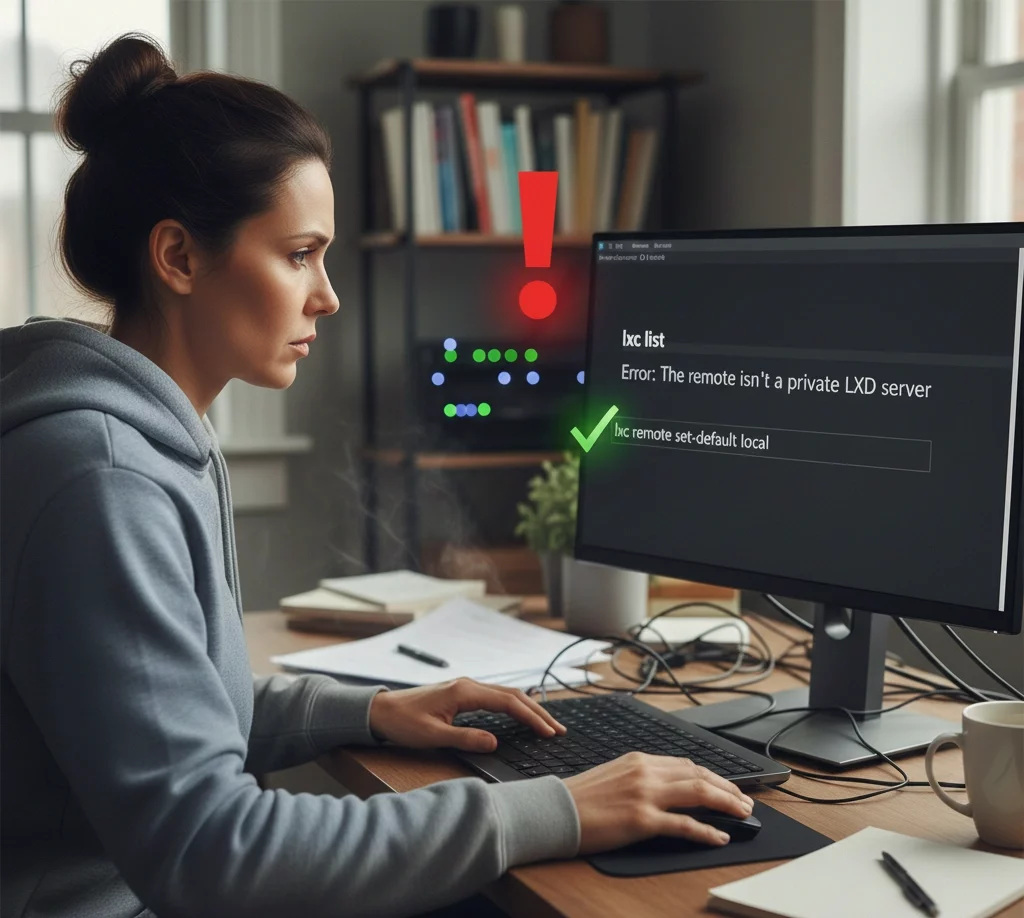
The error ‘The remote is not a private LXD server’ appears when the LXC client connects to a server that it does not trust as a private LXD instance. This usually occurs when the remote points to the wrong server or when the local remote is no longer set as the default.
LXD blocks the connection as a safety step to avoid unverified access. In most cases, the message highlights a mismatch between the client and the configured remote rather than an actual issue with the LXD service.
Syntax of the Error
The error usually appears during LXD command line operations, for example:
lxc launch <remote>:<image> <container-name>When the command treats a public image server as a private LXD host, the output shows:
Error: The remote isn't a private LXD serverFix LXD Remote Errors Today

How to Fix the “Remote Is Not a Private LXD Server” Error
-
Reset the Default Remote to Local
When this helps
Use this when commands like lxc list fail after a remote change.
Why it works
LXD assumes the default remote when no remote name is given. If a public server is set as the default, LXD rejects private operations.
How to fix
lxc remote set-default local

lxc list
This tells LXD to work with your local machine again.
-
Re-Add the Remote With Trust
When this helps
Use this if the client cannot authenticate with the remote server.
Why it works
LXD requires trusted certificates before it allows private access.
How to fix
lxc remote add <name> <address> –accept-certificate
Approve the fingerprint when prompted, or use a password or key if required.
-
Confirm the Remote Exists
When this helps
Use this if the remote name in the command is not recognized.
Why it works
LXD only connects to remotes that exist in its configuration.
How to fix
lxc remote listIf the remote is missing, add it again with the correct name and address.
-
Use the Correct Command for the Task
When this helps
Use this if you are launching images from a public server or moving containers between servers.
Why it works
Public image servers do not support private authentication.
How to fix
lxc launch images:ubuntu/22.04 my-container

lxc copy local:container1 remote:container1
Choose launch for images and copy for transfers.
-
Verify Command Syntax
When this helps
Use this when errors appear after typing commands manually.
Why it works
LXD strictly parses remote image and container names.
How to fix
Double-check the order and spelling of remote image and instance names before running the command.
-
Check Network Access
When this helps
Use this if the remote server cannot be reached.
Why it works
LXD needs stable network access to connect and authenticate.
How to fix
ping <server>If there is no response, check firewall rules or server availability.
-
Review Server Side Changes
When this helps
Use this if the error appeared after updates or config changes.
Why it works
Server updates can reset trust or access rules.
How to fix
Check server logs with:
journalctl -u lxdRe-add the remote if trust settings changed.
Prevention and Resolution Strategies
- Use the right command for public images: Public remotes support images only, not private management tasks.
- Set up trust for private servers: Expose the LXD API and add the remote without marking it as public.
- Check the default remote: Reset it to local if a public server is set by mistake.
- Specify the remote in commands: This avoids accidental use of the wrong server.
- Confirm network access: Ensure the LXD service and API port are reachable.
[Need assistance with a different issue? Our team is available 24/7.]
Conclusion
The error that the remote isn’t a private LXD server signals a mismatch between your LXD client and the remote it targets. It often stems from incorrect remote settings, missing trust, or using public image servers for private actions. Fixing the remote configuration and command usage restores normal access quickly.
If the error persists or affects active workloads, connect with our LXD support team for fast and reliable help.

