


AWS managed services for secure EC2 instances with IAM Roles, Security Groups, MFA, monitoring, and access controls for safer cloud operations.
EC2 gives you scalable, on-demand compute, but that flexibility cuts both ways. A misconfigured instance is just as easy to spin up as a properly secured one — and attackers know it. Most security incidents on EC2 don’t involve anything exotic. They come from an SSH port left wide open, a pair of access keys sitting in plaintext on a server, or an administrator account that never had MFA turned on.
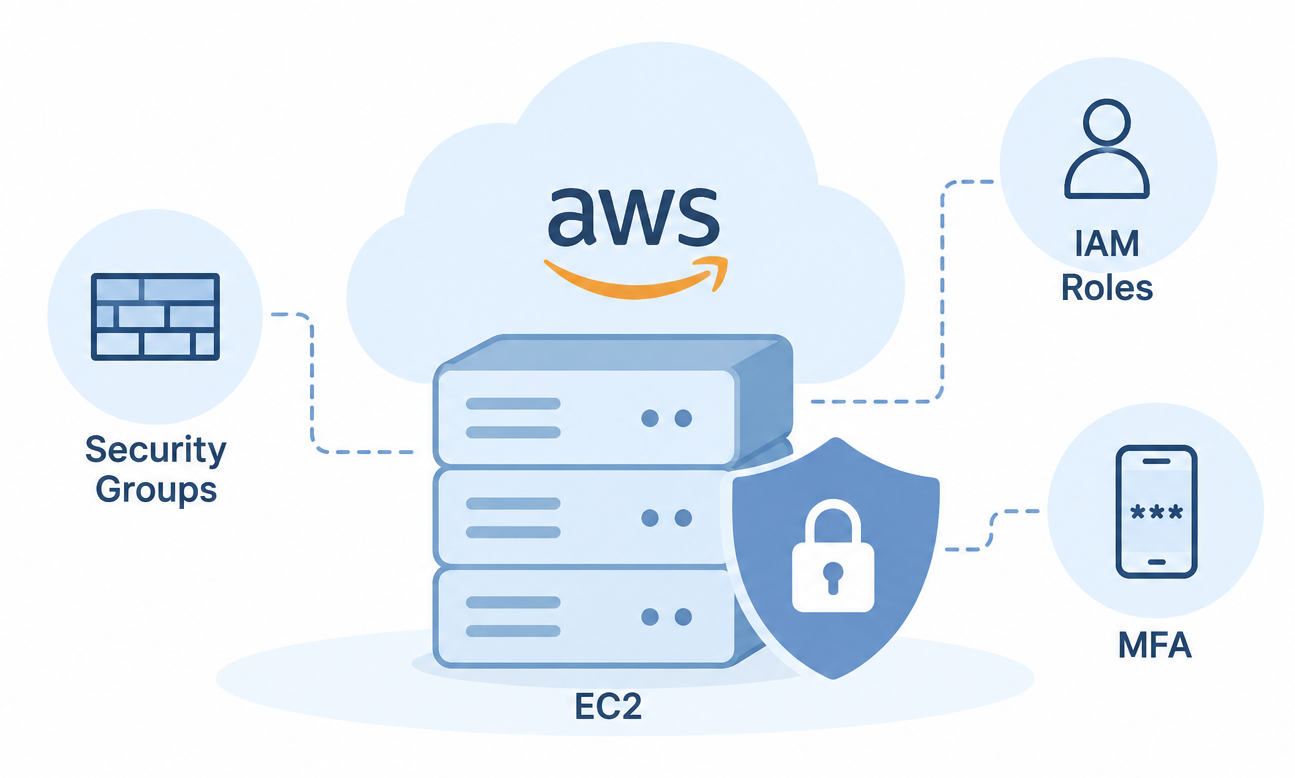
This guide walks through three controls that, together, cover most of that ground: Security Groups, IAM Roles, and Multi-Factor Authentication. None of them is a silver bullet on its own, but layered together they form a reasonably solid baseline for production workloads.
An Overview
Understanding the AWS Shared Responsibility Model
AWS handles the data centers, the physical hardware, the hypervisor layer, and the underlying network. Everything above that line — the OS on your instances, your firewall rules, your IAM policies, how you encrypt data, who can access what — is on you. So when an EC2 instance gets compromised because of an open port or a leaked key, that’s not really an AWS problem. It’s a configuration problem, and it’s the customer’s to fix.
For teams managing production workloads, AWS cloud consulting can help assess security configurations, clarify shared responsibility boundaries, and identify gaps in EC2 access controls.
Start with Security Groups
Think of a Security Group as a firewall that lives at the instance level rather than the network perimeter. A few things make it different from a traditional firewall: it’s stateful, so return traffic is automatically allowed once you’ve permitted the outbound or inbound request; it only supports allow rules, not explicit denies; and it applies per-instance rather than per-subnet.
Secure Your AWS Environment Today.

The logic is straightforward. Inbound traffic gets checked against your rules — if something matches, it’s let through; if nothing matches, it’s dropped. You don’t need a separate rule to block everything else, because that’s the default behavior.
A reasonably tight setup might look like this:
| Protocol | Port | Source | Purpose |
|---|---|---|---|
| HTTPS | 443 | 0.0.0.0/0 | Public web traffic |
| HTTP | 80 | 0.0.0.0/0 | Redirect to HTTPS |
| SSH | 22 | Office IP only | Admin access |
Notice what’s missing from that table: SSH open to the world. That’s one of the most common mistakes out there —
SSH, Port 22, Source: 0.0.0.0/0
— and it means anyone on the internet can attempt to connect. Lock it down to a known IP instead:
SSH, Source: 203.0.113.20/32
Now only someone connecting from that specific address can even attempt to authenticate.
Keep the Rule Set Lean
Open only what the instance actually needs. If you don’t need FTP, Telnet, RDP, or a database port reachable from outside, don’t add the rule “just in case.” A web server generally needs HTTPS and a tightly scoped SSH rule — not much else.
Split Things Up by Tier
Rather than running everything through one catch-all Security Group, it’s worth creating separate groups for web servers, application servers, database servers, and any bastion hosts you’re using. A typical flow ends up looking like:
Internet → Web SG → Application SG → Database SG
Reference Other Security Groups Instead of IP Ranges
Instead of allowing your database to accept connections from a CIDR block, point the rule at the application tier’s Security Group directly:
Web SG → Application SG → Database SG
That way the database only ever talks to instances that are actually part of the application layer, regardless of what IP they happen to have.
Use IAM Roles to Avoid Long-Lived Credentials
An IAM Role lets an EC2 instance request temporary AWS credentials on demand, rather than having a static access key and secret key sitting on disk somewhere. This is one of the simpler security wins available, and it’s underused.
Hardcoded credentials are a liability in a few specific ways: they can leak through logs or misconfigured backups, they’re a pain to rotate without breaking something, and they have a habit of ending up committed to a Git repo somewhere — sometimes years before anyone notices.
AWS_ACCESS_KEY_ID=AKIA….
AWS_SECRET_ACCESS_KEY=abcd….
With an IAM Role attached instead, the flow looks more like this: the application running on the instance calls the AWS SDK, the SDK requests credentials from the instance metadata service, and AWS hands back temporary credentials tied to whatever permissions the role has. Those credentials rotate automatically — nobody has to remember to do it.
Say you’re building something that uploads images to S3. Rather than dropping a key pair into a config file, attach a role scoped to just s3:GetObject and s3:PutObject. The SDK picks up the temporary credentials on its own, and there’s nothing sensitive stored on the box at all.
A few habits worth keeping here: scope policies tightly rather than reaching for AdministratorAccess out of convenience; treat AWS-managed policies as a starting point, not a final answer, and review what they actually grant; and even though role credentials rotate themselves, don’t forget to clean up unused IAM user access keys and disable accounts that are no longer active.
Protect Accounts with Multi-Factor Authentication
MFA is the simplest control on this list to explain: after entering a password, the user has to provide a second factor — an authenticator app code, a hardware token, a security key — before they’re let in.
The value of this becomes obvious the moment you think through a phishing scenario. Without MFA, a stolen password is enough to get an attacker into the AWS console. With MFA enabled, that same stolen password gets them nowhere, because they still need the second factor.
Setting it up takes a few minutes: open the IAM console, find the user, go to Security Credentials, assign an MFA device, scan the QR code, and confirm with a couple of authentication codes. AWS supports virtual authenticator apps, hardware security keys, and FIDO2 devices, so there’s room to match the method to how sensitive the account is.
For day-to-day practice: turn MFA on for every user, make it non-negotiable for anyone with administrative access, lock down the root account specifically, and lean toward hardware keys rather than app-based codes for your most privileged accounts.
Put Security Controls Together
None of these three controls does much on its own against a determined attacker, but stacked together they cover different failure modes:
| Control | What It Protects Against |
|---|---|
| Security Groups | Unauthorized network access |
| IAM Roles | Stolen or leaked credentials |
| MFA | Compromised passwords |
A typical setup looks something like this: traffic hits a Security Group that allows only HTTPS and a narrow SSH rule; the EC2 instance behind it uses an IAM Role instead of stored credentials; and any human logging into the console must clear an MFA challenge first. That’s defense in depth in practice — not a single wall, but several independent ones.
Add These Security Practices
Beyond the three core controls, a handful of other habits go a long way: keep operating systems patched and turn on automatic security updates where you can, encrypt EBS volumes, push secrets into Secrets Manager or Parameter Store instead of config files, and turn on CloudTrail so you have a record of API activity. Pair that with CloudWatch for monitoring and GuardDuty for threat detection, restrict root account usage to the rare cases that actually need it, run periodic IAM access reviews, and use AWS Config to catch configuration drift before it becomes a problem.
An AWS cloud consultant can help review these controls across EC2 workloads, prioritize configuration gaps, and establish a practical schedule for security reviews.
Common EC2 Security Mistakes
A short list of the same issues that tend to surface again and again in security reviews:
- SSH open to 0.0.0.0/0
- Credentials stored directly on instances
- AdministratorAccess granted by default rather than as an exception
- Privileged accounts without MFA
- Security Groups left attached long after they’re needed
- CloudTrail logs nobody actually looks at
- IAM users shared across a team
- The root account used for routine administrative work instead of a dedicated IAM user
Conclusion
There’s no single setting that secures an EC2 instance — it’s the combination that matters. Security Groups cut down what’s reachable from the network in the first place, IAM Roles remove the need for credentials that can leak or go stale, and MFA makes a stolen password far less useful on its own. None of this is a one-time setup either; it’s worth revisiting access policies, reviewing logs, and tightening rules on a regular cadence rather than treating the initial configuration as the finish line.

