


Understand vLCM Live Patch vs traditional remediation, eligibility checks, and troubleshooting steps with our Server Management Support team.
Updating ESXi hosts with minimal disruption is a key goal for virtualization teams. This article compares vLCM Live Patch and traditional remediation, outlines how each process works, and highlights common eligibility issues, configuration checks, and practical steps to ensure smoother patch cycles.
-
- What Makes vLCM Live Patch Different from Traditional Remediation
- How Traditional Remediation Works
- How Live Patch Works
- Why You See Live Patch Not Eligible
- Patch Compatibility Issues
- Cluster Image Mismatch
- DRS Configuration Problems
- Hardware and VM Restrictions
- Simple Fix Workflow
- Best Practices for Future Patch Cycles
What Makes vLCM Live Patch Different from Traditional Remediation
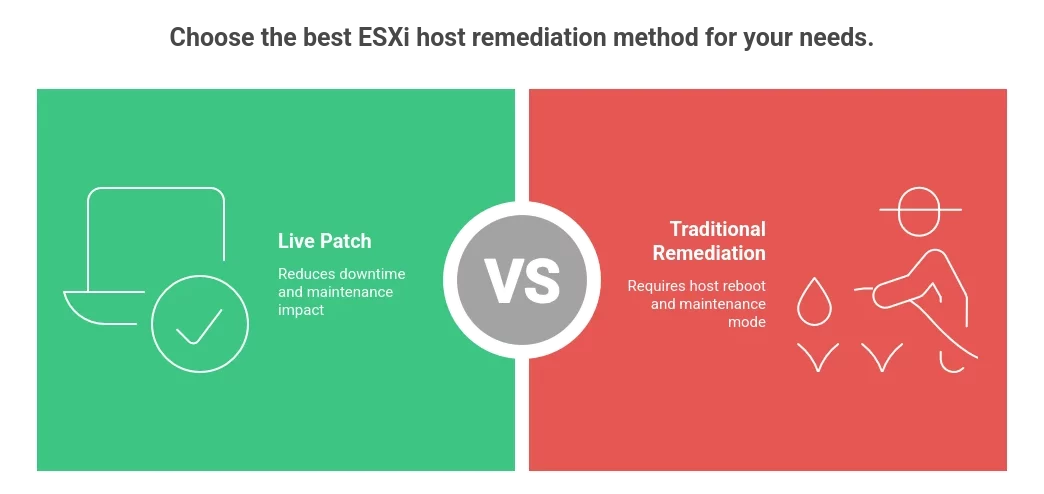
Many administrators search for how to patch ESXi hosts without long downtime. Live Patch in vSphere helps reduce maintenance impact. It allows certain updates to install without restarting the host. Virtual machines keep running, and patch time becomes shorter.
Traditional remediation always requires a reboot. The host enters maintenance mode, workloads move, updates install, and then the host restarts.
Live Patch is faster. However, it depends on several conditions inside the cluster. If any condition fails, the system switches back to the normal reboot method.
Optimize Your vSphere Patching

How Traditional Remediation Works
Traditional remediation follows a fixed process:
- Host enters maintenance mode
- DRS moves virtual machines
- Updates are installed
- Host reboots
- Workloads move back if needed
This method is stable and widely used. But it takes more time because every host must restart. In large clusters, this can extend the maintenance window. Most administrators are familiar with this process because it has been the standard update method for years.
How Live Patch Works
Live Patch works differently.
- The host does not restart if the patch supports it
- Updates are applied while the system is running
- Virtual machines continue operating
Before patching, the system checks:
- Patch type
- Cluster image consistency
- DRS settings
- Host hardware status
- VM configuration
If all checks pass, patching happens without reboot. If any check fails, the system falls back to traditional remediation.
Why You See Live Patch Not Eligible
Many administrators enable Live Patch but still see “not eligible” during compliance checks.
This usually means one of the required conditions is not met. The system starts remediation, runs validation, then switches to reboot mode.
You may notice:
- Some hosts remain non compliant
- Certain VMs are flagged
- Remediation takes longer than expected
The solution is to review compliance details carefully and identify what is blocking eligibility.
Patch Compatibility Issues
Not every ESXi update supports Live Patch.
Some updates change core system files and require a restart. Even if Live Patch is enabled, it cannot override this requirement.
Before scheduling updates:
- Review release notes
- Confirm the patch supports Live Patch
- Plan reboot windows if required
Knowing this in advance avoids confusion during maintenance.
Cluster Image Mismatch
All hosts in the cluster must run the same image.
This includes:
- ESXi base image
- Vendor add on
- Drivers and firmware
If one host has a different version, Live Patch eligibility can fail.
To fix this:
- Run a compliance scan
- Compare component versions
- Align all hosts to the same image
A consistent cluster image improves patch success.
DRS Configuration Problems
Live Patch depends on proper DRS behavior.
Common issues include:
- DRS not set to fully automated
- Affinity rules blocking VM movement
- Not enough free capacity
Before remediation:
- Set DRS to fully automated
- Review VM host rules
- Ensure spare resources are available
Good DRS configuration helps Live Patch complete smoothly.
Hardware and VM Restrictions
Some hardware and VM settings can block Live Patch.
Host level issues may include:
- PCI passthrough devices
- Unsupported drivers
- Firmware mismatch
VM level issues may include:
- Fault Tolerance enabled
- Passthrough devices
- Special graphics configurations
Check host alarms and VM settings before patching. Plan separate maintenance for restricted workloads if needed.
Simple Fix Workflow
If Live Patch shows not eligible, follow these steps:
- Confirm vCenter and ESXi versions meet requirements.
- Ensure Live Patch enforcement is enabled.
- Run a compliance scan and read the details.
- Fix image mismatches.
- Set DRS to fully automated.
- Review hardware and VM restrictions.
- Test patching on one host first.
This method keeps troubleshooting simple and controlled.
Best Practices for Future Patch Cycles
To avoid fallback issues:
- Keep cluster images consistent
- Maintain enough spare capacity
- Separate special workloads when possible
- Run compliance checks before maintenance
- Review patch notes every time
Live Patch reduces downtime, but it works best in clean and well managed clusters. Good preparation leads to smoother and faster patch cycles.
[Need assistance with a different issue? Our team is available 24/7.]
Conclusion
vLCM Live Patch works best when cluster configuration and images are properly aligned. For structured and reliable vSphere patch management, contact our server management team.

