


PowerShell simplifies Hyper-V administration through its built-in Hyper-V module. Administrators can automate routine tasks, apply consistent configurations, and manage hosts and virtual machines more efficiently across environments.
If you’re managing Microsoft virtualization platforms, our experts help automate Hyper-V administration, improve operational efficiency, and support reliable virtual infrastructure through proactive management and monitoring.
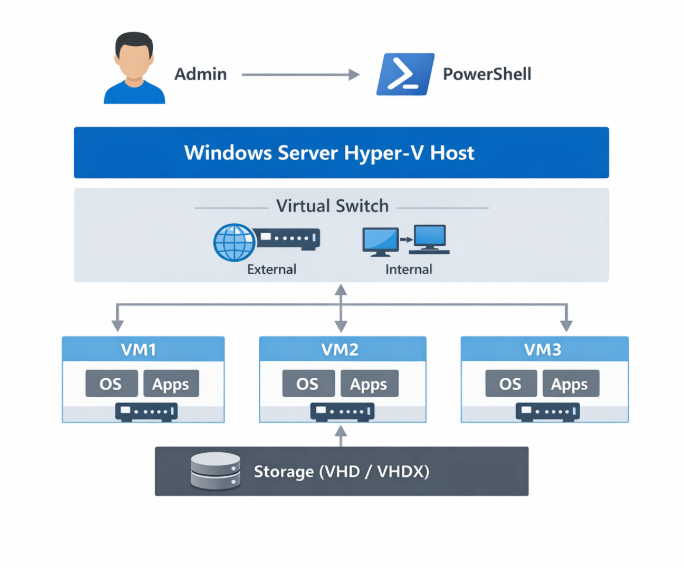
Why Automate Hyper-V with PowerShell?
PowerShell enables administrators to replace repetitive manual tasks with reusable scripts. This approach improves consistency while making it easier to manage large Hyper-V environments.
Key benefits include:
- Consistent configuration across virtual machines
- Faster execution of repetitive administrative tasks
- Simplified management of large-scale environments
- Remote administration without relying on graphical tools
- Integration with monitoring, backup, and CI/CD workflows
Prerequisites
Before automating Hyper-V management, confirm that the following requirements are available:
- Windows Server with the Hyper-V role installed
- PowerShell 5.1 or later
- Hyper-V PowerShell module enabled
- Administrative privileges on the Hyper-V host
Verify that the Hyper-V module is installed by running:
Get-Module -ListAvailable Hyper-VCommon Hyper-V Automation Tasks
PowerShell provides built-in cmdlets for managing virtual machines throughout their lifecycle.
List and Monitor Virtual Machines
Retrieve information about all virtual machines running on a Hyper-V host.
Get-VM
Get-VM | Select-Object Name, State, CPUUsage, MemoryAssigned
These commands are commonly used in monitoring and health-check scripts to identify stopped virtual machines or resource constraints.
Create a Virtual Machine
PowerShell simplifies virtual machine provisioning by allowing administrators to create a new VM using a single command.
New-VM -Name "TestVM01" -MemoryStartupBytes 4GB -Generation 2 `

       -VHDPath "D:\VMs\TestVM01\TestVM01.vhdx" `

       -SwitchName "ProductionSwitch"
Automating virtual machine creation helps maintain standardized configurations while reducing deployment time.
Manage Virtual Machine Power Operations
PowerShell supports routine virtual machine lifecycle operations.
Start a virtual machine:
Start-VM -Name "TestVM01"Stop a virtual machine:
Stop-VM -Name "TestVM01" -ForceRestart a virtual machine:
Restart-VM -Name "TestVM01"These commands are commonly used during maintenance activities and scheduled operational tasks.
Manage Virtual Machine Resources
PowerShell allows administrators to adjust CPU and memory resources as workload requirements change.
Increase startup memory:
Set-VM -Name "TestVM01" -MemoryStartupBytes 8GBIncrease virtual processors:
Set-VMProcessor -VMName "TestVM01" -Count 4Updating resources through scripts simplifies administration across multiple virtual machines.
Create Checkpoints
Checkpoints provide a recovery point before applying patches or configuration changes.
Checkpoint-VM -Name "TestVM01" -SnapshotName "Pre-Patch"
Get-VMSnapshot -VMName "TestVM01"
Although checkpoints are useful for short-term recovery and change validation, they should not replace regular backups.
Automating Hyper-V at Scale
Automation becomes increasingly valuable as Hyper-V environments expand. PowerShell scripts can be scheduled using Task Scheduler, triggered by monitoring alerts, or incorporated into CI/CD pipelines.
Common automation scenarios include:
- Scheduled virtual machine health checks
- Automated virtual machine provisioning
- Pre-maintenance shutdown and post-maintenance startup
Best Practices
Following established practices helps improve the reliability and maintainability of PowerShell automation.
Recommended practices include:
- Test scripts in non-production environments before deployment.
- Enable logging to record script execution and failures.
- Use role-based access control (RBAC) where applicable.
- Maintain clear documentation for ongoing administration.
Common Production Use Cases
PowerShell automation supports many routine administrative activities in production Hyper-V environments.
Typical use cases include:
- Virtual machine provisioning
- Pre-patch checkpoint creation
- Scheduled maintenance
- Virtual machine health monitoring
Automating these tasks reduces operational risk while allowing administrators to focus on higher-value activities.
Conclusion
PowerShell provides an efficient way to automate Hyper-V administration through built-in cmdlets and reusable scripts. Routine activities such as virtual machine provisioning, resource management, monitoring, and maintenance become more consistent while reducing manual effort. Additionally, adopting automation best practices helps improve operational efficiency as Hyper-V environments continue to grow.
Bobcares helps businesses manage Microsoft virtualization platforms. Our engineers assist with Hyper-V automation, infrastructure monitoring, performance management, and ongoing virtual infrastructure support to maintain reliable production environments.

