


Unlock the power of CLI automation for efficient background jobs and scheduling with DevOps services for your application.
Command-line interfaces (CLIs) often start with simple tasks such as generating files, running database migrations, or clearing caches. As an application grows, however, some tasks become too large for a normal web request.
API syncs may take forty minutes, reports may query several databases, and cleanup jobs may process hundreds of thousands of rows. These tasks can run into HTTP timeouts and memory limits. Moving them to the server console gives them more room to run.
An Overview
What Is Custom CLI Automation?
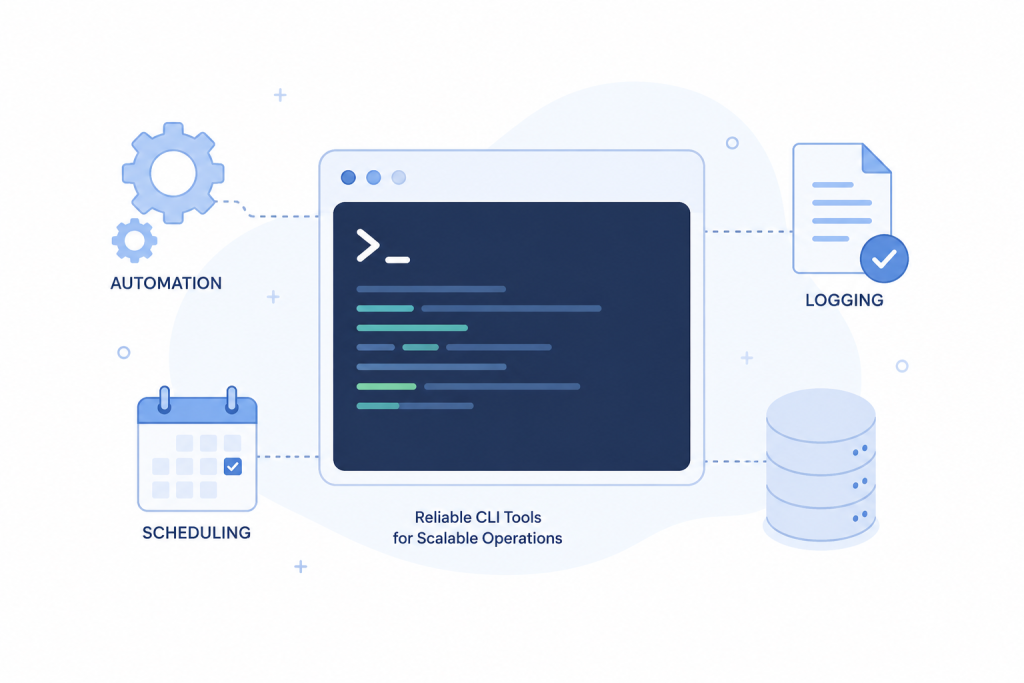
It is possible to use CLI automation so that developers can execute application business logic through the terminal directly, for example. These commands execute in the same application environment as the web application, rather than in a shell script.
They are able to use the same models, services and configuration to deal with tasks like:
- Billing reconciliation
- Large data cleanup
- External API syncs
- Cloud storage cleanup
This keeps long-running work separate from normal web requests.
Why Use Custom CLI Tools?
As teams grow, manual scripts and database updates can create operational risks. A version-controlled CLI command gives developers the same code, parameters, and process across environments.
CLI commands can also include checks that prevent errors, like prompts for confirmation and input validation, and ensure that the data is kept safe, like database transactions. Meanwhile, they are able to relocate heavy work out of the request lifecycle, maintaining user interface responsiveness.
Streamline Your DevOps Today.

Build Commands With Safety in mind
A command should make its purpose clear. Named options such as –month=06 and –year=2026 remove the confusion that positional arguments can create.
If a destructive action occurs, then it will need a flag like –force. Also, a –dry-run option for commands that modify the database data or remove files. This will enable the command to display what modifications it will make without making them.
A confirmation prompt provides an additional “double check” before a production change runs.
Handle Large Jobs Carefully
If the application loads all the data at once, it can generate memory issues with large data sets. Database cursors or chunked queries allow the command to work with smaller chunks, 500 or 1,000 records at a time.
Transactions are also important when a command changes related tables. If the process fails partway through, a transaction can roll back the changes instead of leaving the database only partly updated.
If the job is a long-running one, display some helpful progress information such as: current batch, percentage, or a progress bar. This makes the operator more aware that the command is still operating.
Schedule Commands Automatically
Once the command is stable, eliminate the need to manually run the command. If the framework supports it, you can specify the schedule within the application, rather than having someone log in to the server daily.
It helps to keep the schedule up to date with the code, and it will be easier to review and deploy.
The same scheduled command can run multiple times in multi-server environments. To stop duplicate execution, use a lock, particularly when creating and sending out an invoice.
Scheduled commands should also report failures through an alerting system so the team can act before the problem grows.
Keep CLI Commands Maintainable
CLI commands are production code and need regular maintenance.
Log important details for every run, including:
- Timestamp
- Parameters
- Records processed
- Success or failure
Keep commands in the same repository as the application and follow the normal code review and deployment process. Operational commands should not bypass these steps simply because users do not see them directly.
Conclusion
Custom CLI automation provides a practical way to handle work that does not fit well inside a normal web request.
Billing reconciliation, data cleanup, API syncs, and other long-running tasks can run through controlled console commands. With clear options, safety checks, careful data processing, scheduling, logging, and code review, these commands can support applications as they grow.

