


Learn practical Linux commands for DevOps with Linux server management services. Manage servers, logs, processes, networks, and services efficiently.
DevOps is not only about CI/CD pipelines, cloud platforms, containers, or automation tools. Behind many of these technologies is a Linux server. When an application stops responding, a disk becomes full, a service fails to start, or a deployment behaves unexpectedly, the Linux command line is often where the investigation begins.
For this reason, Linux command-line skills are an important part of practical DevOps work. Engineers use commands to inspect servers, manage applications, investigate logs, monitor resources, troubleshoot networks, and automate repetitive tasks.
This article focuses on the commands that are useful during everyday DevOps operations rather than trying to list every Linux command available.
An Overview
- Connecting to a Linux Server
- Creating and Managing Files
- Checking Server Resources
- Finding Resource-Hungry Processes
- Managing Services
- Investigating Logs
- Network Troubleshooting
- Moving Files Between Servers
- Linux and Containers
- Combining Commands During Troubleshooting
- Linux Commands and Automation
- Safe Use of Linux Commands
- Linux Commands Worth Learning
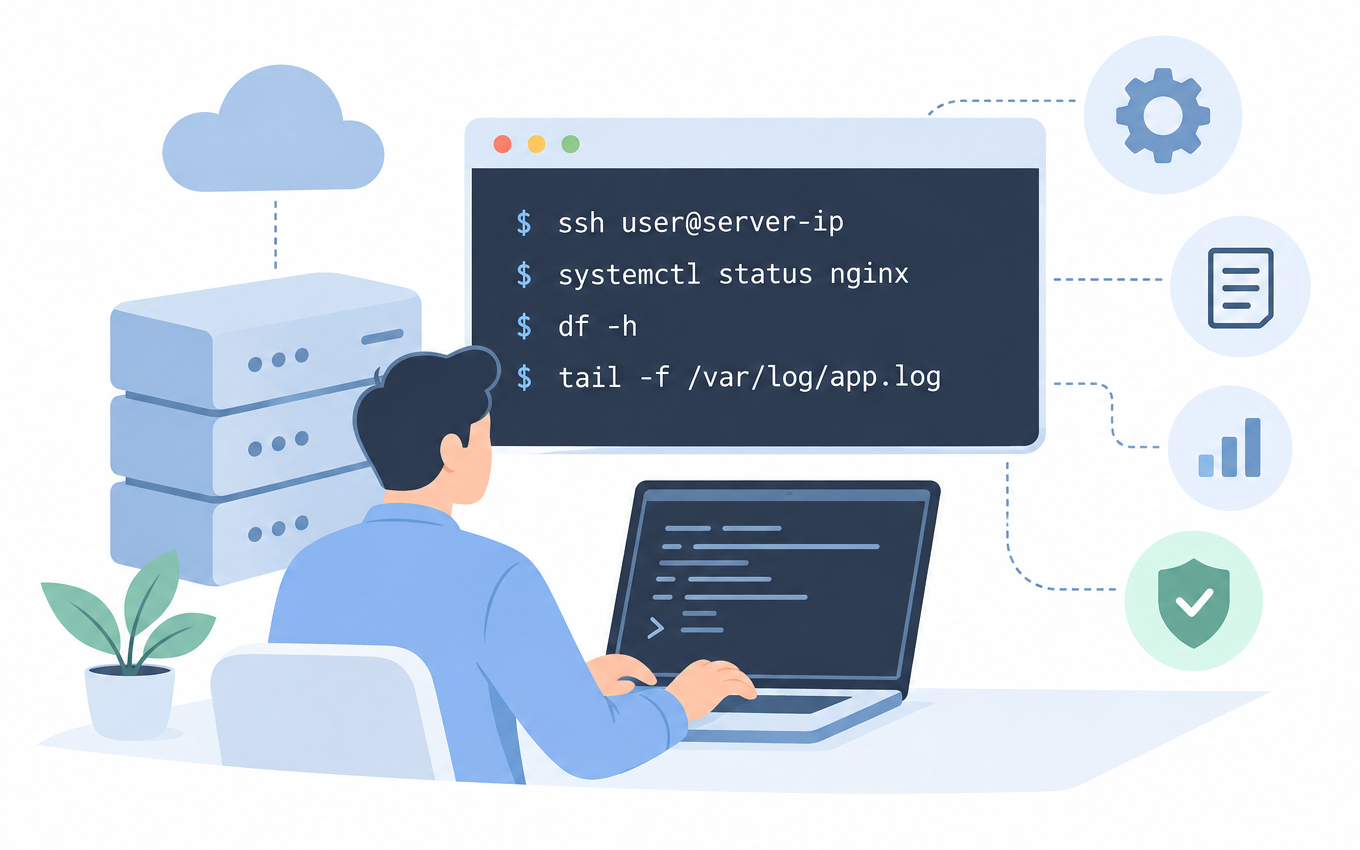
Connecting to a Linux Server
DevOps engineers frequently work with remote infrastructure. SSH provides a secure way to access a Linux server from another machine.
ssh user@server-ipAfter logging in, it is useful to confirm which account and server you are working on:
whoami

hostname

pwd
This simple check can prevent mistakes, especially when several production and testing servers are involved.
Finding Your Way Around the Server
Before changing anything, you need to understand where you are and what is available in the current directory.
The pwd command displays your current location:
pwdUse ls to inspect files and directories:
ls

ls -lah
Move to another directory with:
cd /var/logTo return to the previous directory:
cd ..These commands may look basic, but they are used constantly when managing application files, configuration directories, and logs.
Creating and Managing Files
Application deployments often involve creating directories, copying configuration files, moving data, and removing temporary files.
For example:
mkdir -p /opt/myapp/logsCopy a configuration file before editing it:
cp config.yml config.yml.backupRename or move a file:
mv old-config.yml config.ymlRemove a temporary file:
rm temporary.logThe find command is useful when you do not know where a particular file is located.
find /var/log -name "*.log"It can also be used to locate unusually large files:
find /var -type f -size +500MBe particularly careful with rm -rf. It can recursively remove files and directories, and an incorrect path can result in permanent data loss.
Talk to us about Linux support.

Checking Server Resources
A server can become slow for many reasons. High CPU usage, insufficient memory, or a filesystem running out of space are common possibilities.
The uptime command gives a quick overview of system uptime and load:
uptime
For a live view of running processes:
topMemory information can be checked with:
free -hDisk filesystem usage:
df -hIf df shows that a filesystem is nearly full, du can help identify where the space is being consumed:
du -sh /var/*For example, if /var is using a large amount of space, this command can help identify whether logs, caches, application data, or another directory is responsible.
Finding Resource-Hungry Processes
When an application is consuming too many resources, process information becomes important.
To display running processes:
ps auxYou can sort the output by CPU usage:
ps aux --sort=-%cpu | headOr sort it by memory usage:
ps aux --sort=-%mem | headThis can quickly point you towards a process that may be responsible for a performance problem.
For example, if a server suddenly has very high CPU usage, checking the process list before restarting services can provide useful evidence about what is actually happening.
Managing Services
Linux servers commonly run services such as web servers, databases, monitoring agents, and application processes.
On systems using systemd, systemctl is one of the main tools for managing these services.
Check a service:
systemctl status nginxStart it:
systemctl start nginxStop it:
systemctl stop nginxRestart it:
systemctl restart nginxEnable it during system startup:
systemctl enable nginxChecking the service status should generally be one of the first steps when an application becomes unavailable.
Investigating Logs
Restarting a failed service without checking its logs may only hide the real problem. Logs often provide the information needed to identify the cause.
For traditional log files, commands such as these are useful:
less /var/log/application.logTo watch new entries as they appear:
tail -f /var/log/application.logSearch for errors:
grep -i "error" /var/log/application.logModern Linux systems using systemd can also use journalctl to access the system journal.
For example:
journalctl -u nginxTo focus on recent entries:
journalctl -u nginx --since "30 minutes ago"This is particularly useful when a service has recently failed or restarted.
Network Troubleshooting
Network problems can appear as application failures, timeouts, failed deployments, or inaccessible services.
The ip command can display network interfaces and addresses:
ip addrRouting information can be checked with:
ip routeTo see listening ports:
ss -lntupFor example, if a web application should be listening on port 8080, ss can help determine whether something is actually listening there.
HTTP connectivity can be tested with curl:
curl -I https://example.comDNS can also be checked when a domain is not resolving as expected:
nslookup example.comThese commands help separate application problems from basic connectivity or configuration problems.
Moving Files Between Servers
DevOps work often involves transferring application files, backups, or deployment data between machines.
rsync is commonly used for synchronising directories:
rsync -av /var/www/app/ user@server:/var/www/app/SSH can also be used with tools such as scp for straightforward file transfers.
The key is to understand what data is being transferred and the direction of the operation before running it on a production system.
Linux and Containers
Linux fundamentals are also valuable when working with Docker and other container technologies.
Some commonly used Docker commands include:
docker psThis shows running containers.
To inspect container output:
docker logs container_nameTo open a shell inside a running container:
docker exec -it container_name /bin/bashOnce inside the container, normal Linux commands can help investigate processes, files, networking, and disk usage.
Docker itself also relies on system-level services. On Linux systems using systemd, you can manage Docker with commands such as systemctl, and examine its daemon logs with journalctl.
Combining Commands During Troubleshooting
The real strength of the Linux command line comes from combining tools.
For example, suppose you want to find processes related to Nginx:
ps aux | grep nginxTo search a large application log for recent errors:
grep -i "error" /var/log/application.log | tailTo find large files under a particular directory:
find /var/log -type f -size +100M -exec ls -lh {} \;These combinations allow engineers to reduce large amounts of information into something easier to investigate.
Linux Commands and Automation
Once a DevOps engineer becomes comfortable with individual commands, the next step is automation.
A collection of commands that is repeatedly executed can often be placed inside a Bash script.
For example, a simple script could check whether a service is running, record disk usage, and collect recent log entries.
This approach reduces repetitive manual work and makes operational procedures easier to reproduce.
Linux commands also form part of larger automation systems involving Git, CI/CD platforms, configuration-management tools, Docker, Kubernetes, and Infrastructure as Code.
Safe Use of Linux Commands
Having access to powerful commands also means understanding their risks.
Before running a command on production infrastructure:
Confirm the server and current directory.
Understand what the command will change.
Check whether the operation is destructive.
Use the minimum privileges required.
Review logs before changing configuration.
Test significant changes outside production where possible.
Keep backups of important configuration and application data.
For example, blindly running:
rm -rf /some/pathcan have serious consequences if the path is incorrect.
Good DevOps practice is not simply about getting a command to work. It is about making changes in a controlled and predictable way.
Linux Commands Worth Learning
A practical starting set for a DevOps engineer is:
ssh

pwd

ls

cd

find

cp

mv

rm

grep

tail

ps

top

df

du

free

systemctl

journalctl

ip

ss

curl

rsync
Once these become familiar, learning Bash scripting becomes much easier. From there, you can progress into Git, Docker, Kubernetes, CI/CD, cloud platforms, monitoring, and Infrastructure as Code.
Conclusion
Linux remains an important foundation for DevOps because so much infrastructure operates close to the operating-system level. When a deployment fails or a production service stops responding, knowing how to inspect processes, logs, networking, storage, and services can dramatically reduce troubleshooting time.
The objective is not to memorise hundreds of commands. A better approach is to understand a smaller set of useful commands and learn how to combine them when investigating real problems.
Start with basic navigation and file management, then move into process monitoring, service administration, log analysis, networking, and automation. Once these fundamentals are comfortable, technologies such as Docker, Kubernetes, CI/CD, and cloud infrastructure become much easier to understand.
For a DevOps engineer, Linux is not just another technology to learn. It is one of the tools used to understand what is actually happening underneath the applications and platforms being managed.

