


Easily back up, restore, and Migrate WordPress Site to Vultr with UpdraftPlus safely. Our Vultr Support team is ready to assist you.
Migrate Your WordPress Site to Vultr With UpdraftPlus
Migrating your WordPress site to a new server can feel daunting, but the process is straightforward with the right tools. UpdraftPlus simplifies backups, restoration, and migration, ensuring your site remains safe. This guide shows how to move your WordPress site to a Vultr server efficiently and securely.
What is UpdraftPlus?
UpdraftPlus is one of the most popular WordPress plugins for backups and migration. It allows you to create reliable backups, restore your website quickly, and even move it to another server without going through complicated manual steps.
The free version covers basic needs like full backups and restores directly from your WordPress dashboard. If you need advanced options, the premium plan adds incremental backups, multiple storage choices, database encryption, and dedicated support. Because of this balance of simplicity and power, it has become the go-to solution for millions of website owners.
Why Choose UpdraftPlus for WordPress Backups and Migration?
Instead of listing features, it helps to see how this plugin solves real problems for website owners. With UpdraftPlus, you can:
- Schedule automatic backups so your site is always safe.
- Restore your website with a single click, even after major issues.
- Use the migration tool to clone or transfer your site without downtime.
- Save space and time with incremental backups that only record new changes.
- Store backups securely in remote locations such as Google Drive, Dropbox, or Amazon S3.
These benefits mean you don’t just back up your site, you actually gain peace of mind knowing your data is protected.
Preparing Your Server for Migration
Before you move your site, you need to make sure the new server is ready. Taking the time to prepare avoids common migration errors.
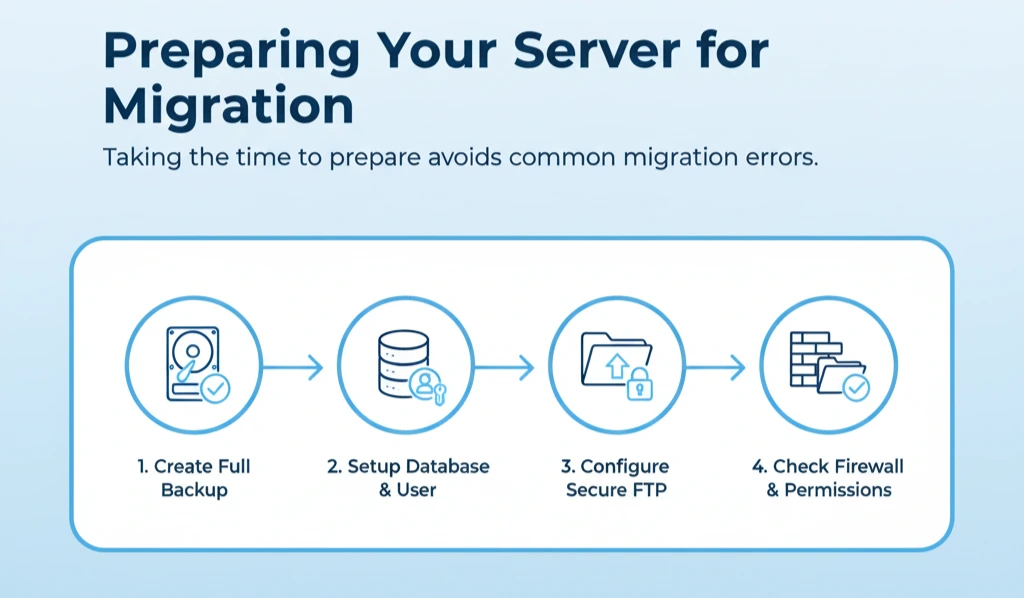
Here are the steps you should complete:
- Create a full backup of your existing site as a safety net.
- Set up a new database on your target server and give it a user with full permissions.
- Configure FTP or SFTP access so files can be uploaded securely.
- Check firewall rules and file permissions to prevent transfer issues.
Once these tasks are done, your server will be prepared for a smooth migration.
Backing Up Your WordPress Site with UpdraftPlus
Backing up with UpdraftPlus is often the part readers care about most, and the process is simple.
First, install and activate the plugin from your WordPress dashboard. Then, connect it with a remote storage option like Dropbox or Google Drive. Once storage is set, you can create your first backup:
- Open the WordPress dashboard and go to Settings and then choose UpdraftPlus Backups
- Select the option Backup Now
- Choose whether you want to include the database, themes, plugins, and uploads
- Confirm the action and wait until the backup finishes
You will see your backup listed under existing backups, ready to restore whenever needed.
Restoring and Migrating Your WordPress Site
Migration may sound complex, but UpdraftPlus keeps it straightforward. After downloading your backup files, upload them to your new server, such as a Vultr one click WordPress instance. Then follow these steps:
- Extract the files into the correct WordPress directory.
- Import the backup database into the new server’s database.
- Update the wp-config file with the new database credentials.
- Adjust the site URL if you are moving to a different domain.
- Log in to the WordPress dashboard and refresh permalinks by saving settings again.
After completing these steps, your website should look and function exactly as it did before the migration.
Post Migration Checklist
At this stage, your site is live on the new server, such as a Cloudways Vultr high frequency instance, but a few extra steps will make sure everything works perfectly.
- Enable SSL certificates to secure your site with HTTPS.
- Update DNS records or nameservers to point the domain to your new server.
- Allow time for DNS propagation, which can take a few hours to a full day.
- Test all pages, links, images, forms, and logins to confirm smooth performance.
These checks complete the migration and ensure your visitors enjoy a seamless experience.
[Need assistance with a different issue? Our team is available 24/7.]
Conclusion
By following these steps, you can confidently migrate your WordPress site to a new server without losing data. Using UpdraftPlus ensures backups, restoration, and migration are handled smoothly. With proper preparation and careful execution, you can easily migrate WordPress site to Vultr with UpdraftPlus and have your website running securely on the new server.
In brief, our Support Experts demonstrated how to fix the “554 5.7.1 : Relay access denied” error.

