


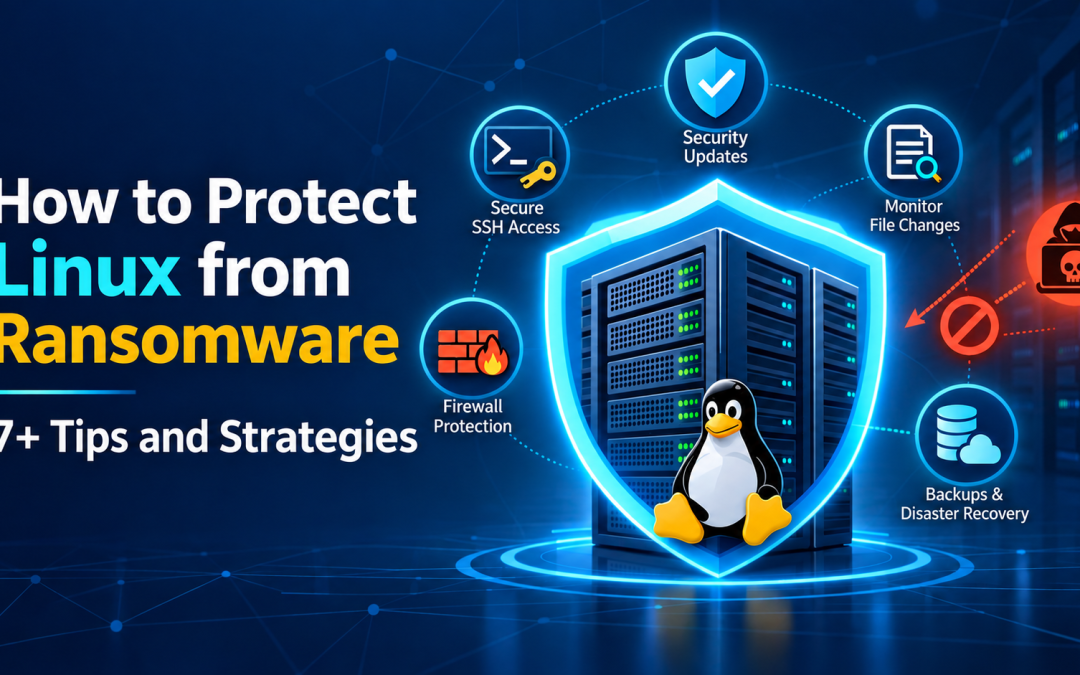
A Linux server can run for months without showing any obvious signs of a security problem. Apache is running, MySQL is responding, emails are going out and websites are loading normally. From an administrator’s point of view, everything seems fine.
But what if someone has already gained access to the server?
This is something worth thinking about, especially when managing hosting servers with multiple websites and customer accounts. An attacker doesn’t always start encrypting files immediately. Sometimes they first look for vulnerable applications, check available permissions and try to find other ways to access the system.
Linux is generally considered a secure operating system, but that doesn’t mean attackers leave it alone. Production servers contain valuable information, including website files, databases, email data and business information. Losing access to this data can cause serious problems. Strong Linux server security starts with proper server management, from securing SSH access and applying updates to monitoring suspicious activity and maintaining reliable backups.
Ransomware is particularly concerning because it can affect more than just one website. Depending on the attacker’s access, entire directories, databases and even backup files could become inaccessible.
The interesting thing is that many security problems don’t start with some complicated hacking technique. An outdated application, a weak SSH password or an exposed service can sometimes be enough. If you need help maintaining and securing your Linux infrastructure, our Linux Server Management services can help keep your servers monitored, updated, and properly managed.
Let’s look at some practical things Linux administrators can do to reduce the risk.
1. Start by Checking SSH Access
SSH is probably one of the most frequently used services by Linux administrators. We use it to investigate problems, check server resources, manage services and perform routine maintenance.
However, when was the last time you checked the failed SSH login attempts on your server?
On AlmaLinux and other RHEL-based distributions, you can check them using grep “Failed password” /var/log/secure.
For Ubuntu and Debian, use grep “Failed password” /var/log/auth.log.
You may notice several attempts coming from IP addresses you don’t recognize. These are commonly automated login attempts where bots try different usernames and passwords.
Seeing a few failed attempts doesn’t necessarily mean your server has been compromised. However, repeated attempts against administrative accounts should not be ignored.
One thing I would recommend is disabling direct root login.
Open the SSH configuration file using vi /etc/ssh/sshd_config and check the following settings:
PermitRootLogin no
PasswordAuthentication no
PubkeyAuthentication yes
MaxAuthTries 3
These settings disable direct root login and password authentication while allowing SSH key-based authentication. MaxAuthTries limits authentication attempts per connection.
Before applying these changes, make sure SSH keys are configured and tested properly. Otherwise, you might end up locking yourself out.
Run “sshd -t” to check the configuration before reloading the service. If everything is fine, use systemctl reload sshd on RHEL-based systems. On Ubuntu and Debian, the service may be named ssh.
I would also suggest restricting SSH access to trusted IP addresses wherever possible. If administrators connect only through an office network or VPN, there is little reason to allow SSH connections from everywhere.
2. Don’t Keep Postponing Security Updates
This is something that happens quite often in production environments.
An administrator knows that updates are available but decides to postpone them because there is a possibility of breaking something. That concern is understandable. Nobody wants to install an update and suddenly find that an application has stopped working.
However, leaving vulnerable packages untouched for months is not a good solution.
Attackers regularly look for systems running outdated software. When a vulnerability becomes publicly known, unpatched servers can become easy targets.
For Ubuntu and Debian, use apt update && apt upgrade.
On AlmaLinux or Rocky Linux, use dnf update.
To check the currently running kernel, execute uname -r.
Remember that installing a new kernel doesn’t automatically mean the server is running it. A reboot may be required.
For production servers, I would suggest having a proper update schedule instead of installing packages randomly whenever someone remembers.
Check important application dependencies, test updates where possible and maintain a recent backup before major changes.
Also, don’t focus only on the operating system. WordPress installations, plugins, PHP applications and other software running on the server need attention too.
A fully updated operating system doesn’t make much difference if an outdated website application is still exposing the server to attackers.
3. Check What Is Actually Accessible From Outside
Sometimes we spend time investigating complicated security issues while overlooking services that are unnecessarily exposed to the internet.
Take MySQL, for example. It normally uses port 3306. Does every external IP address need access to that port? In most hosting environments, definitely not.
You can check listening services using ss -tulnp.
This command helps identify which ports are listening and which processes are associated with them.
If you are using UFW, you can allow the required connections using ufw allow 22/tcp, ufw allow 80/tcp and ufw allow 443/tcp.
Check the rules using ufw status verbose.
For firewalld, execute firewall-cmd –list-all.
Don’t forget to check database access, FTP services and other applications that may have been installed for temporary purposes.
A firewall will not prevent every ransomware attack, but reducing unnecessary access makes the attacker’s job more difficult.
4. Backups Are More Important Than You Think
Let me explain a situation that every hosting administrator would want to avoid.
You are managing a production server with several customer websites. Suddenly, multiple websites stop working. You investigate the directories and notice that files have unfamiliar extensions. After checking further, you discover that ransomware has encrypted the website data.
What would you do next?
Naturally, you would look for a backup.
But what if the backup is also stored on the same server?
This is one of the reasons I would never recommend depending entirely on local backups. If an attacker gets sufficient privileges, they may also delete or encrypt the backup files.
For MySQL databases, you can create a backup using mysqldump -u root -p database_name > database.sql.
To restore it, use mysql -u root -p database_name < database.sql.
For a complete hosting environment, remember to include website files, databases, email data and important configuration files.
A useful approach is the 3-2-1 backup strategy. Keep three copies of your important data, use two different storage types and maintain one copy at an offsite location.
If possible, keep an additional copy offline or use immutable storage.
There is something else I would like to mention here. A backup job showing successful completion doesn’t always mean the backup is usable.
Try restoring the data occasionally. Check whether databases open correctly and whether website files are complete.
You don’t want to discover a problem with your backup when you are already dealing with an emergency.
5. Pay Attention to Unexpected File Changes
Imagine checking a website directory and finding that thousands of files have been modified within a few minutes.
Would you consider that normal?
There may be a genuine reason, such as a website update or a large file operation. But if nobody has performed any such activity, it deserves investigation.
Ransomware often modifies large numbers of files during encryption. Monitoring important directories can help identify unusual activity.
Linux provides a useful auditing service called auditd. On Ubuntu, install it using apt install auditd. On AlmaLinux and Rocky Linux, use dnf install audit. Enable the service using systemctl enable –now auditd.
To monitor changes in a website directory, execute auditctl -w /var/www/html -p wa -k website_monitor.
This creates a rule to monitor write and attribute changes in the specified directory.
You can check the recorded events using ausearch -k website_monitor.
For administrators managing multiple servers, Wazuh is another option worth considering. It provides centralized monitoring, file integrity monitoring and security alerts.
One thing to remember is that monitoring every directory on a busy hosting server can generate a lot of events. Start with important locations and adjust the rules based on your requirements.
The objective is not to collect thousands of logs every day. It is to notice something unusual and investigate it before more damage occurs.
6. Stop Using chmod 777 as a Quick Fix
This is probably familiar to anyone who has worked with Linux hosting environments.
A website reports a permission error. Someone changes the directory permissions to chmod 777, and suddenly the website starts working.
It looks like the issue is fixed, but the permissions are now much more open than necessary.
If an attacker compromises an application, excessive write permissions may allow them to modify additional files and directories.
Start by checking the existing ownership and permissions using ls -lah /var/www/html.
You can change directory permissions using chmod 750 /var/www/html, depending on the application requirements.
However, don’t apply this setting blindly. The correct permissions depend on the web server user, account ownership and which directories need write access.
For example, WordPress may need write access to certain directories for uploads and updates, while other application files should remain protected.
You can also identify files with SUID permissions using find / -type f -perm -4000 2>/dev/null.
Review the output and investigate unexpected entries. Don’t delete everything because many legitimate Linux utilities use SUID permissions.
The basic idea is to give applications and users only the access they actually need. Running websites with root privileges should also be avoided.
7. Use Security Scanners, But Understand Their Limitations
There are several tools available for checking Linux servers for malicious files and security weaknesses.
ClamAV is one option for malware scanning.
On Ubuntu, install it using apt install clamav clamav-daemon.
Update the signatures using freshclam.
To scan a website directory, use clamscan -r /var/www/html.
Another useful tool is Lynis. It checks different areas of the Linux configuration and reports potential security weaknesses.
You can start an audit using lynis audit system.
Wazuh is also worth considering if you manage several servers and need centralized security monitoring.
However, installing these tools doesn’t mean the server is automatically protected.
A scanner may detect known malicious files, but it cannot guarantee that every threat will be identified. It also won’t fix weak passwords, outdated applications or incorrectly configured firewall rules.
I would rather have a few properly configured security tools that are regularly monitored than install several applications and never check their reports.
8. Know What to Do If Ransomware Gets Through
Even with good security practices, there is always a possibility that something might go wrong.
If you notice unexpected file encryption or suspicious activity, don’t immediately start deleting files or restarting services.
First, isolate the affected server from the network where possible. This helps prevent further damage and reduces the chance of the attack spreading to connected systems.
Preserve important logs and investigation evidence. Check authentication records and identify which directories, websites and databases have been affected.
Also, don’t forget to investigate other connected servers. If an attacker has obtained administrative credentials, other systems may be at risk too.
Review compromised accounts, SSH keys and other authentication methods. Reset credentials that may have been exposed.
Once the incident has been investigated and the original entry point has been addressed, restore the affected data from clean backups.
This last part is important. Simply restoring the files and bringing the server online again may not solve anything if the original vulnerability is still present.
For serious incidents, involve a professional incident-response team rather than trying to handle everything without proper investigation.
Conclusion
Working with Linux servers involves more than making sure Apache and MySQL are running properly. We also need to think about what could happen if someone gains access to the systems we manage. Effective Linux server security depends on consistent maintenance, timely updates, restricted access, secure permissions, and tested backups.
You don’t need to spend a huge amount on security products to get started. Review SSH access, keep applications updated, check firewall rules, maintain proper permissions and make sure your backups are actually recoverable. These are not complicated tasks, but they are easy to overlook when there are several production issues to deal with every day.
Personally, I would give more importance to a tested backup and restricted administrative access than simply installing multiple security tools and assuming everything is protected. No Linux server is completely safe from attacks. That is something administrators need to accept. What matters is how well the server is maintained, how quickly suspicious activity is identified and whether there is a reliable way to recover when something goes wrong. Our Linux Server Management services can help you maintain these security practices while keeping your Linux servers stable, monitored, and ready to handle evolving security risks.