


Get expert Windows server management services for smooth migrations, upgrade planning, licensing checks, testing, and minimal downtime.
Planning a Windows server migration has its challenges due to end-of-support deadlines, aging hardware, application needs, licensing, cost, and projected service outages.
To know what type of server migration you will have to undertake, we need to consider the server hardware and software in use, the applications used, and also the needs of the business. This is why meticulous planning is critical before the cutover.
An Overview
- Supported Windows Server Upgrade Paths
- In-Place Upgrade vs. Fresh Server Migration
- Common Issues That Delay Windows Server Migrations
- Windows Server Licensing Considerations
- Pre-Migration Assessment
- Testing and Validation
- Backup Validation: Test the Restore
- How to Minimize Windows Server Migration Downtime
- Should You Move to Cloud or Hybrid?
- Plan Your Rollback Before Cutover
Supported Windows Server Upgrade Paths
Not all versions of Windows server have a direct upgrade path to the latest version. Many non-clustered Windows servers have greater upgrade flexibility to Windows server 2025. Upgrades to clusters, however, continue to have a major restriction: they must be upgraded in a rolling manner, one version at a time.
To make sure you are on the correct upgrade path, you would be wise to verify the supported upgrade path before starting the project. Assuming a direct upgrade path will exist can be a recipe for a last-minute nightmare.
Get Expert Server Migration Help.

In-Place Upgrade vs. Fresh Server Migration
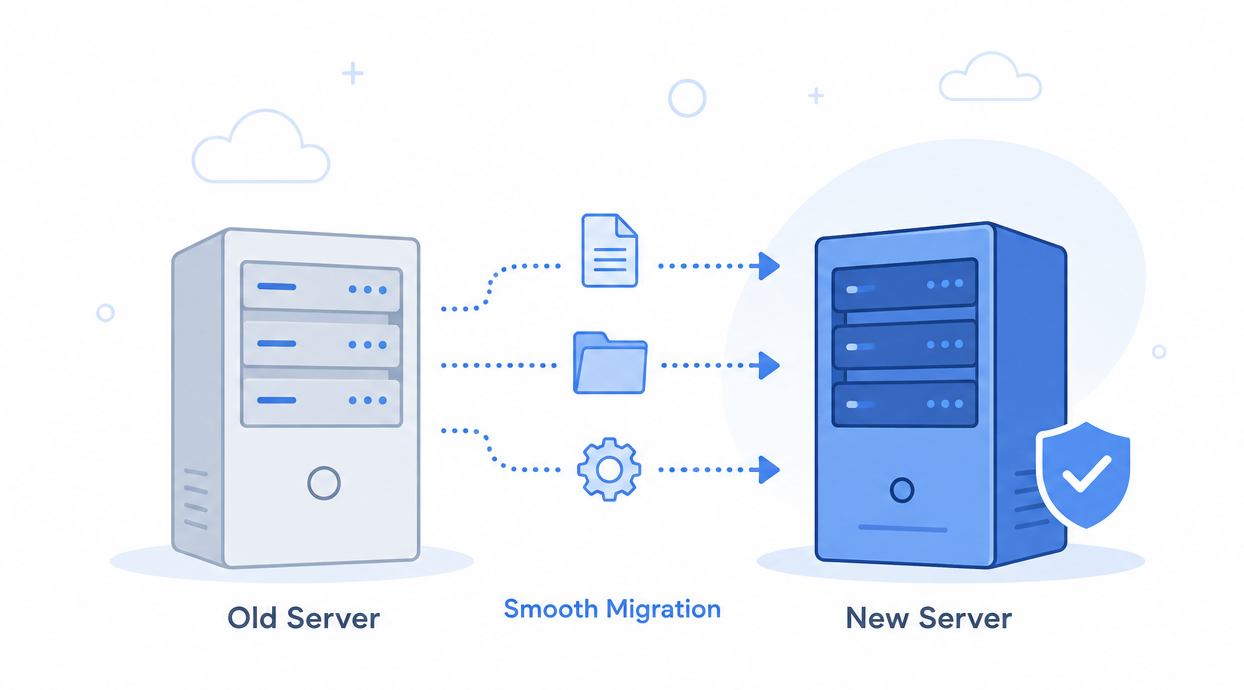
A fresh migration would be more appropriate if the existing server is a concern and you would like to migrate to a more long-term solution.
| In-Place Upgrade | Fresh Server Migration |
|---|---|
| Keeps most existing settings | Starts with a clean server |
| Requires less rebuilding | Gives more control over what moves |
| Useful for clean, well-documented servers | Better for servers with years of changes |
| Can preserve complex configurations | Makes it easier to remove old services and applications |
| Carries existing configuration issues forward | Requires more discovery and testing |
When to Choose an In-Place Upgrade
An in-place upgrade may work well when:
- The server is small and well documented.
- The current configuration is clean.
- You need to preserve complex settings.
- You have a tight maintenance window.
- The existing applications and roles support the upgrade.
However, an in-place upgrade can carry old drivers, services, scheduled tasks, and configuration problems into the new version.
When to Choose a Fresh Migration
A fresh migration is worth considering when:
- The server has years of undocumented changes.
- Legacy services or temporary fixes are still present.
- You are moving to new hardware.
- You want to remove unused shares, jobs, or applications.
- You want a cleaner server for long-term maintenance.
Although a fresh migration needs more planning, it gives you better control over the final environment.
Common Issues That Delay Windows Server Migrations
Migration problems often come from the applications and configurations running on the server rather than Windows server itself.
Common examples include:
- Hard-coded hostnames or IP addresses
- Outdated frameworks or database versions
- Service accounts with unknown permissions
- Scheduled tasks linked to old systems
- DNS and firewall dependencies
- Shared folders with custom permissions
- Database connections
- Third-party integrations
As a result, the longer a server has been in production, the more important discovery becomes. Finding these dependencies before the cutover helps prevent unexpected delays.
Windows Server Licensing Considerations
Licensing can have a major effect on the migration budget, especially when new hardware is involved.
Windows server uses core-based licensing, with a minimum of 16 cores per server and 8 cores per physical processor.
The main licensing points include:
- Standard Edition: Allows up to 2 OSEs or VMs with the required number of Core licenses assigned.
- Datacenter Edition: Offers unlimited virtualization and is best suited for highly virtualized hosts.
- RDS CALs: These are separate from Windows server CALs and are often missed during upgrades.
Therefore, review licensing early. New hardware with more cores can increase the licensing cost.
Pre-Migration Assessment
Before building the new server, document what the current server actually does.
Check:
- Applications, roles, and features
- Scheduled tasks and PowerShell scripts
- Service accounts and permissions
- DNS records and firewall rules
- Network dependencies
- Backup jobs and monitoring agents
- Shared folders and permissions
- Database connections
- Third-party integrations
- Active Directory dependencies, where applicable
This assessment helps identify problems before the maintenance window.
Testing and Validation
Testing should happen before production cutover.
Use a staging environment where possible and check authentication, certificates, Group Policy, firewall behavior, application functions, and other key dependencies.
Also test the workload under realistic conditions. Problems found during testing can be fixed before production. Problems found after cutover can affect users and business operations.
Backup Validation: Test the Restore
A successful backup report does not prove that recovery will work.
Before making major changes, restore critical workloads in a test environment. Confirm that:
- Databases open correctly.
- Applications start normally.
- Files are complete.
- Permissions remain intact.
- Required configurations are available.
By testing recovery in advance, you know what to expect if the migration needs to be reversed.
How to Minimize Windows Server Migration Downtime
For most standalone servers, the goal is a short and well-planned maintenance window.
To reduce downtime:
- Pre-synchronize files and databases.
- Lower DNS TTL values 24–48 hours before cutover.
- Use replication or storage migration tools where suitable.
- Complete as much work as possible before the maintenance window.
- Keep the old server available for quick rollback.
For Hyper-V clusters, Cluster OS Rolling Upgrade and live migration can support very low or no workload downtime in suitable environments.
The more work you complete before cutover, the shorter the final migration window can be.
Should You Move to Cloud or Hybrid?
A server migration also gives you a chance to review whether on-premises infrastructure still fits the workload.
Latency-sensitive data and regulatory-bound workloads will continue their on-premises stay. Backup repositories, development & test workloads, and burst workloads can move to Azure or a hybrid architecture.
The design should follow workload placement rather than a move to a single platform.
Plan Your Rollback Before Cutover
It is essential to have a rollback plan prepared prior to the start of the migration.
Leaving the legacy environment up and available provides a failsafe in the case the new environment does not function as anticipated.
Your rollback plan should account for:
- Data synchronization
- DNS changes
- Application dependencies
- Recovery steps
- The conditions that require a rollback
A clear rollback plan reduces pressure during the maintenance window.
Conclusion
A successful migration of Windows servers is rooted in a command and robust understanding of the environment.
Regardless of whether you are upgrading a single server or addressing the needs of a greater enterprise, the selection of a proper migration path, coupled with a thoughtful design, can help ensure a very limited impact on your business operations.
Whether you are upgrading one server or refreshing a larger infrastructure, choosing the right migration path and preparing before cutover can help keep downtime low and business operations running.

