


Today, we will explore practical techniques for tuning CPU, memory, disk, and network performance in Windows Server, along with recommended monitoring practices.
If you’re managing production Windows environments, our services help improve server performance through proactive monitoring, resource tuning, and ongoing infrastructure management.
Why Performance Tuning Matters
Performance tuning helps servers handle workloads more efficiently while reducing operational issues.
Key benefits include:
- Faster application response times
- Better resource utilization
- Improved system stability
- Reduced troubleshooting effort
- Delayed hardware upgrades through better resource management
CPU Performance Tuning
The CPU processes application workloads and operating system tasks. High CPU utilization can affect application responsiveness and overall server performance.
Common Causes
- Resource-intensive applications
- Inefficient scripts or application code
- Too many running processes
Recommended Practices
- Use Task Manager or Resource Monitor (resmon) to identify high CPU utilization.
- Install the latest Windows updates and application patches.
- Disable unnecessary services after verifying they are not required.
- Configure the Windows power plan to High Performance when maximum throughput is required.
Memory Performance Tuning
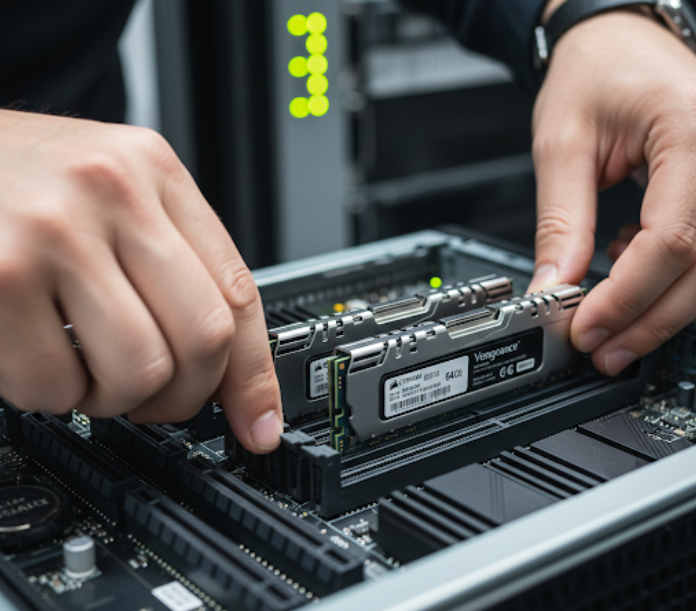 Memory stores data used by active applications. When available RAM becomes insufficient, Windows relies more heavily on virtual memory, which can reduce performance.
Common Causes
- Insufficient physical memory
- Memory leaks
- Large application caches
Recommended Practices
- Increase RAM when memory utilization remains consistently high.
- Monitor page file activity and Hard Faults/sec using Performance Monitor.
- Review applications and services with high memory consumption.
- Size memory according to the workload running on the server.
Disk Performance Tuning
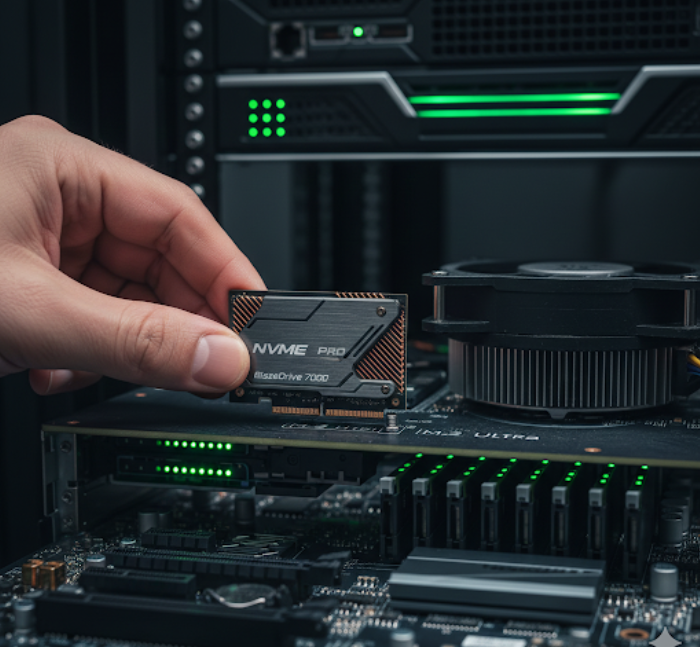 Storage performance affects every workload running on the server. Slow disks or excessive disk activity can become significant bottlenecks.
Common Causes
- Traditional hard drives
- High disk I/O activity
- Disk fragmentation on HDDs
- Antivirus scanning during peak activity
Recommended Practices
- Use SSD or NVMe storage for operating systems and application data.
- Configure appropriate RAID levels based on workload requirements.
- Defragment HDDs using the built-in Windows tool when appropriate.
- Separate operating system, application, and data workloads across different disks when possible.
- Schedule antivirus scans during low-usage periods and review exclusion settings where appropriate.
Network Performance Tuning
Efficient network communication is essential for client connections and application performance.
Common Causes
- Outdated network adapters
- Network congestion
- Driver issues
- Inefficient firewall configurations
Recommended Practices
- Install the latest network adapter drivers.
- Configure NIC Teaming where increased bandwidth or redundancy is required.
- Enable features such as Receive Side Scaling (RSS) and Large Send Offload (LSO) when supported.
- Monitor network utilization using Performance Monitor.
- Configure Quality of Service (QoS) for critical workloads where necessary.
- Verify physical network components, including switches and network cables.
Monitor Before and After Every Change
Performance tuning should always be data driven. Establish a performance baseline before making changes, apply one change at a time, and measure the results before proceeding further.
Useful monitoring tools include:
- Performance Monitor
- Resource Monitor
- Windows Admin Center
This approach helps identify which configuration changes produce measurable improvements.
Conclusion
Windows Server performance depends on the effective management of CPU, memory, disk, and network resources. Regular monitoring, careful configuration, and incremental tuning help reduce bottlenecks, improve application performance, and enhance system stability. Additionally, measuring the impact of each change ensures that performance improvements are based on reliable data rather than assumptions.
Bobcares helps businesses improve Windows Server performance. Our engineers assist with performance analysis, resource tuning, proactive monitoring, and ongoing server management to maintain reliable production environments.

