Simplify VMware administration with PowerCLI using our server administration service. Automate VMs, ESXi, storage, network, and monitoring tasks.
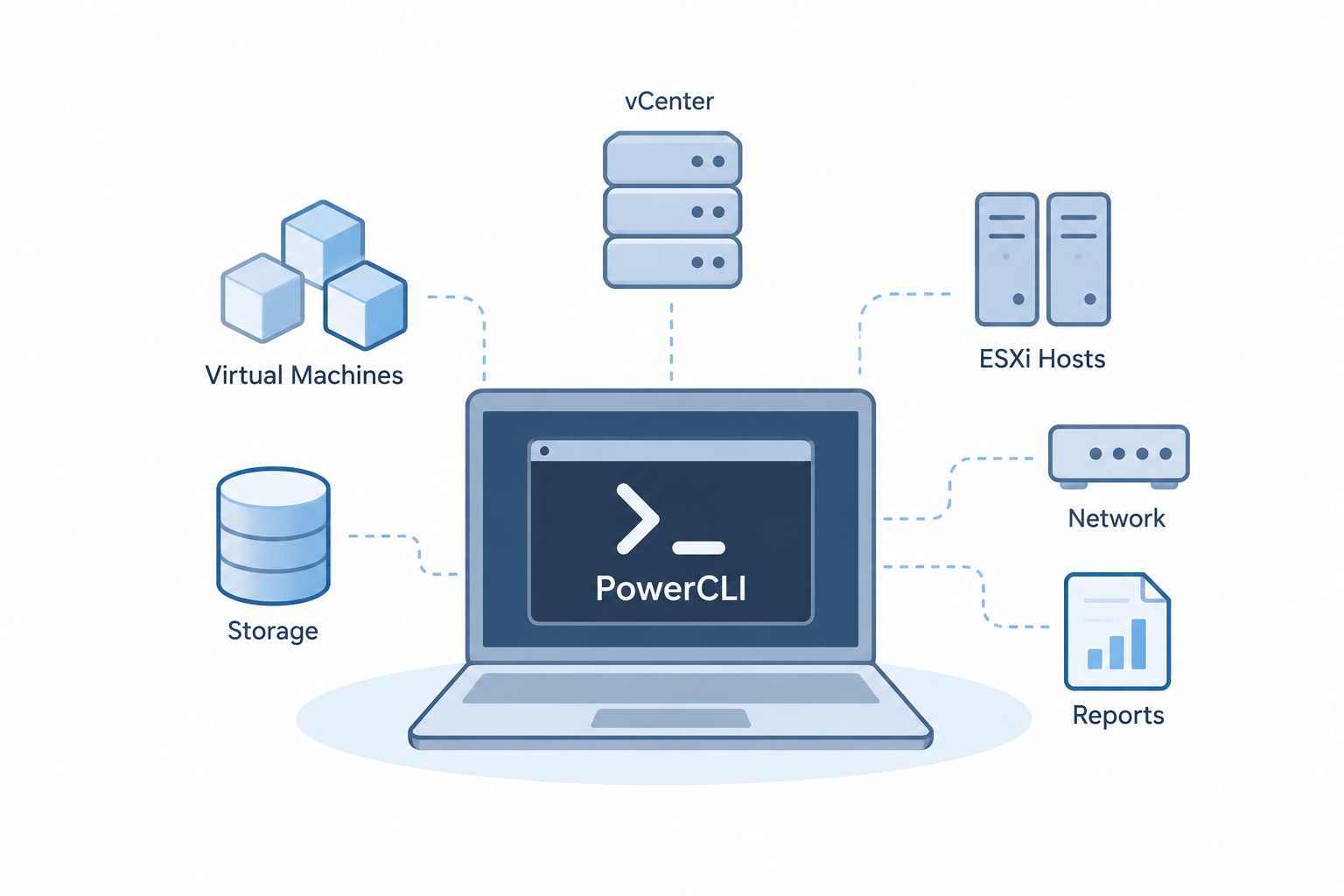
Managing VMware environments often involves repeated tasks such as checking virtual machines, configuring hosts, monitoring storage, and preparing reports. PowerCLI lets administrators handle these tasks through PowerShell scripts.
This guide covers the main PowerCLI tasks used for VMware administration, from setup and vCenter connections to VM, host, storage, network, cluster, and reporting tasks.
An Overview
- What Is VMware PowerCLI?
- Installing and Setting Up PowerCLI
- Connecting to vCenter Server
- Managing Virtual Machines
- Managing VMware Snapshots
- Managing ESXi Hosts
- Datastore Management
- Configuring VMware Networks
- Managing Clusters and Resource Pools
- Monitoring and Reporting with PowerCLI
- PowerCLI Automation Best Practices
- Advanced PowerCLI Features
- Troubleshooting Common PowerCLI Issues
What Is VMware PowerCLI?
VMware PowerCLI is a command-line and scripting tool built on Windows PowerShell. It provides more than 800 cmdlets for managing VMware environments, including vSphere, vCloud, vRealize Operations Manager, vSAN, NSX-T, VMware Cloud Services, VMware Cloud on AWS, VMware HCX, VMware Site Recovery Manager, and VMware Horizon.
PowerCLI helps administrators:
- Automate repeated tasks
- Keep configurations consistent across VMs and hosts
- Deploy and provision resources faster
- Create reports and monitor resources
- Connect VMware tasks with existing PowerShell scripts
Automate VMware Administration.

Installing and Setting Up PowerCLI
System Requirements
The draft lists these requirements:
- Windows PowerShell 5.1 or PowerShell Core 7.0+
- .NET Framework 4.7.2 or later
- Windows, Linux, or macOS
Install PowerCLI
Install PowerCLI through the PowerShell Gallery:
Install-Module -Name VMware.PowerCLI -Scope CurrentUserThen check the installed modules:
Get-Module -Name VMware.* -ListAvailableYou can also set certificate and participation preferences:
Set-PowerCLIConfiguration -InvalidCertificateAction Ignore -Confirm:$false

Set-PowerCLIConfiguration -ParticipateInCEIP $false -Confirm:$false
Connecting to vCenter Server
A vCenter connection lets you run PowerCLI commands against your VMware environment.
Basic Connection
Connect-VIServer -Server vcenter.domain.com -User [email protected] -Password ‘YourPassword’
For better security, use a credential object:
$cred = Get-Credential

Connect-VIServer -Server vcenter.domain.com -Credential $cred
To view active connections:
$global:DefaultVIServersTo disconnect:
Disconnect-VIServer -Server * -Confirm:$falseManaging Virtual Machines
PowerCLI can retrieve VM details, create VMs, control their power state, and change their resources.
View VM Details
Get-VMFor selected details:
Get-VM -Name 'WebServer01' |

Select-Object Name, PowerState, NumCpu, MemoryGB, UsedSpaceGB
Create and Modify VMs
New-VM -Name 'AppServer01' -VMHost 'esxi01.domain.com' `

-Datastore 'Datastore01' -DiskGB 50 -MemoryGB 8 -NumCpu 4 `

-NetworkName 'VM Network' -GuestId windows9Server64Guest
You can also change CPU and memory:
Set-VM -VM 'WebServer01' -MemoryGB 16 -NumCpu 8 -Confirm:$falsePowerCLI also supports common power operations:
Start-VM -VM 'WebServer01'

Stop-VMGuest -VM 'WebServer01' -Confirm:$false

Restart-VMGuest -VM 'WebServer01' -Confirm:$false
Managing VMware Snapshots
Snapshots can help before updates or other changes.
Create and View Snapshots
New-Snapshot -VM 'WebServer01' `

-Name 'Pre-Update-Snapshot' `

-Description 'Before Windows Updates' -Memory -Quiesce
View snapshots with:
Get-Snapshot -VM 'WebServer01'For more details:
Get-Snapshot -VM 'WebServer01' |

Select-Object VM, Name, Created, SizeMB
Remove or Revert Snapshots
Get-Snapshot -VM 'WebServer01' -Name 'Pre-Update-Snapshot' |

Remove-Snapshot -Confirm:$false
You can revert a VM to a selected snapshot with:
Set-VM -VM 'WebServer01' `

-Snapshot (Get-Snapshot -VM 'WebServer01' -Name 'Pre-Update-Snapshot') `

-Confirm:$false
Managing ESXi Hosts
PowerCLI also helps administrators check and manage ESXi hosts.
View Host Information
Get-VMHostTo view selected host details:
Get-VMHost -Name 'esxi01.domain.com' |

Select-Object Name, ConnectionState, PowerState, Version, Build
Maintenance Mode and NTP
You can place a host into maintenance mode:
Set-VMHost -VMHost 'esxi01.domain.com' `

-State Maintenance -Evacuate -VsanDataMigrationMode Full
After maintenance, return it to a connected state:
Set-VMHost -VMHost 'esxi01.domain.com' -State ConnectedYou can also add NTP servers and start the NTP service:
Get-VMHost 'esxi01.domain.com' |

Add-VMHostNtpServer -NtpServer 'ntp1.domain.com','ntp2.domain.com'
Datastore Management
PowerCLI makes it easier to check datastore space and find storage with low free capacity.
Check Datastore Capacity
Get-DatastoreTo find datastores below a set free-space level:
$threshold = 20

Get-Datastore |

Where-Object {($_.FreeSpaceGB/$_.CapacityGB)*100 -lt $threshold} |

Select-Object Name,

@{N='FreeSpace%';E={[math]::Round(($_.FreeSpaceGB/$_.CapacityGB)*100,2)}}
You can also create a VMFS datastore:
New-Datastore -VMHost 'esxi01.domain.com' `

-Name 'Datastore02' `

-Path 'naa.60050763008...' `

-Vmfs -FileSystemVersion 6
The datastore browser can help you view files and find VMDK files:
Get-Datastore -Name 'Datastore01' | Get-ChildItem

Get-Datastore -Name 'Datastore01' |

Get-ChildItem -Recurse |

Where-Object {$_.Name -like '*.vmdk'}
Configuring VMware Networks
PowerCLI can manage standard virtual switches, port groups, distributed switches, and VM network adapters.
Virtual Switches and Port Groups
View virtual switches with:
Get-VirtualSwitchCreate a standard switch:
New-VirtualSwitch -VMHost 'esxi01.domain.com' `

-Name 'vSwitch1' -Nic 'vmnic2'
Create a port group:
Get-VirtualSwitch -Name 'vSwitch0' |

New-VirtualPortGroup -Name 'Production_Network' -VLanId 100
Change its VLAN:
Get-VirtualPortGroup -Name 'Production_Network' |

Set-VirtualPortGroup -VLanId 150
Distributed Virtual Switches
You can create a distributed virtual switch and add an ESXi host:
$datacenter = Get-Datacenter -Name 'DC01'

New-VDSwitch -Name 'DVSwitch01' `

-Location $datacenter -NumUplinkPorts 4

$dvSwitch = Get-VDSwitch -Name 'DVSwitch01'

Add-VDSwitchVMHost -VDSwitch $dvSwitch `

-VMHost 'esxi01.domain.com'
PowerCLI can also add or change VM network adapters.
Managing Clusters and Resource Pools
PowerCLI supports cluster operations, DRS, HA, and resource pools.
Cluster and DRS
View clusters:
Get-ClusterCreate a cluster with HA and DRS:
New-Cluster -Name 'Production-Cluster' `

-Location (Get-Datacenter 'DC01') `

-HAEnabled -DrsEnabled
You can enable DRS automation:
Set-Cluster -Cluster 'Production-Cluster' `

-DrsEnabled:$true `

-DrsAutomationLevel FullyAutomated
You can also create DRS rules to keep selected VMs together.
High Availability and Resource Pools
For example:
Set-Cluster -Cluster 'Production-Cluster' `

-HAEnabled:$true `

-HAAdmissionControlEnabled:$true `

-HAFailoverLevel 2 `

-HAIsolationResponse PowerOff
Create a resource pool with:
New-ResourcePool -Location 'Production-Cluster' `

-Name 'Development' `

-CpuExpandableReservation:$true `

-CpuReservationMhz 4000 `

-MemExpandableReservation:$true `

-MemReservationGB 16
Then move a VM into it:
Move-VM -VM 'DevServer01' `

-Destination (Get-ResourcePool -Name 'Development')
Monitoring and Reporting with PowerCLI
PowerCLI can collect performance data and create inventory reports.
Monitor VM Performance
Get-Stat -Entity 'WebServer01' `

-Stat 'cpu.usage.average','mem.usage.average' `

-Realtime -MaxSamples 5
For historical data:
$startDate = (Get-Date).AddDays(-7)

Get-Stat -Entity 'WebServer01' `

-Start $startDate `

-Stat 'cpu.usage.average' |

Measure-Object -Property Value -Average -Maximum
Create VM Inventory Reports
You can export VM information to CSV:
Get-VM |Select-Object Name, PowerState, NumCpu, MemoryGB,

@{N='ProvisionedSpaceGB';E={[math]::Round($_.ProvisionedSpaceGB,2)}},

@{N='UsedSpaceGB';E={[math]::Round($_.UsedSpaceGB,2)}},

VMHost, Folder |

Export-Csv -Path 'C:\Reports\VM_Inventory.csv' -NoTypeInformation
You can also use scripts to find old snapshots and powered-off VMs.
PowerCLI Automation Best Practices
Good script structure makes automation easier to manage.
Use try-catch blocks to handle errors:
$ErrorActionPreference = 'Stop'

try {

$cred = Get-Credential

Connect-VIServer -Server 'vcenter.domain.com' -Credential $cred

Get-VM | Where-Object {$_.PowerState -eq 'PoweredOff'}

Disconnect-VIServer -Confirm:$false

}

catch {

Write-Error "Script failed: $($_.Exception.Message)"

}

finally {

# Cleanup code

}
For bulk VM creation, PowerCLI can read VM details from a CSV file and process each entry.
For better control, follow these practices:
- Use error handling.
- Keep activity logs.
- Use credential objects instead of plain-text passwords.
- Test scripts outside production first.
- Use -WhatIf when testing supported operations.
- Add useful comments.
- Keep scripts in Git.
Advanced PowerCLI Features
PowerCLI also supports tags, custom attributes, vSphere API access, and Storage vMotion.
Tags and Custom Attributes
Tags can group VMs by values such as environment:
New-TagCategory -Name 'Environment' `

-Cardinality Single -EntityType VirtualMachine

New-Tag -Name 'Production' -Category 'Environment'

New-Tag -Name 'Development' -Category 'Environment'

Get-VM 'WebServer01' |

New-TagAssignment -Tag 'Production'
Custom attributes can store extra VM information:
New-CustomAttribute -Name 'Application' `

-TargetType VirtualMachine

Get-VM 'WebServer01' |

Set-Annotation -CustomAttribute 'Application' `

-Value 'IIS Web Server'
Accessing the vSphere API
For advanced operations, PowerCLI can access vSphere API data through ExtensionData:
$vm = Get-VM 'WebServer01'

$vmView = $vm | Get-View

$vmView.Config.Version

$vmView.Guest.GuestFullName

$vmView.Guest.IpAddress
Storage vMotion
You can move a VM to another datastore:
Move-VM -VM 'WebServer01' -Datastore 'Datastore02'This also supports moving multiple VMs through a PowerShell pipeline.
Troubleshooting Common PowerCLI Issues
Connection Errors
Certificate validation can cause connection problems. You can configure certificate handling with:
Set-PowerCLIConfiguration `

-InvalidCertificateAction Ignore `

-Confirm:$false
Module Issues
If PowerCLI modules do not load, import the required module manually:
Import-Module VMware.VimAutomation.CorePerformance and Debugging
Use the -Server parameter to target a specific vCenter connection:
Get-VM -Server $vcServer -Name 'WebServer01'You can also filter results early:
Get-VM |

Where-Object {$_.PowerState -eq 'PoweredOn'} |

Select-Object Name
For troubleshooting, enable verbose or debug output:
$VerbosePreference = 'Continue'

Get-VM -Verbose
Common issues include:
| Issue | What to check |
|---|---|
| Timeout errors | Web operation timeout settings |
| Permission denied | vCenter permissions |
| Object not found | Object names and wildcards |
| Module not loading | PowerCLI module import |
Conclusion
PowerCLI gives VMware administrators a practical way to automate common administration tasks. It supports VM management, snapshots, ESXi hosts, datastores, networks, clusters, monitoring, reporting, and advanced VMware operations.
Start with basic cmdlets in a lab, then build reusable scripts for common tasks. As you gain experience, you can explore advanced automation and connect PowerCLI with other tools such as Ansible and vRealize Automation.
For more learning, use the VMware PowerCLI documentation, community resources, code samples, and PowerCLI blog listed in the original draft.