


Can’t log in to Moodle due to a 504 Gateway Timeout? Get fast, reliable help from our Moodle Support team to restore smooth access.
Can’t Login to Moodle? Error 504 Gateway Timeout Explained Clearly
Login issues in Moodle can be confusing and disruptive, especially when access fails without a clear reason. A 504 Gateway Timeout error usually appears during login and points to a delay on the server side, not a user mistake. This article explains what the error means, why it occurs, and what you can do next.
504 Gateway Timeout Error in Moodle Explained
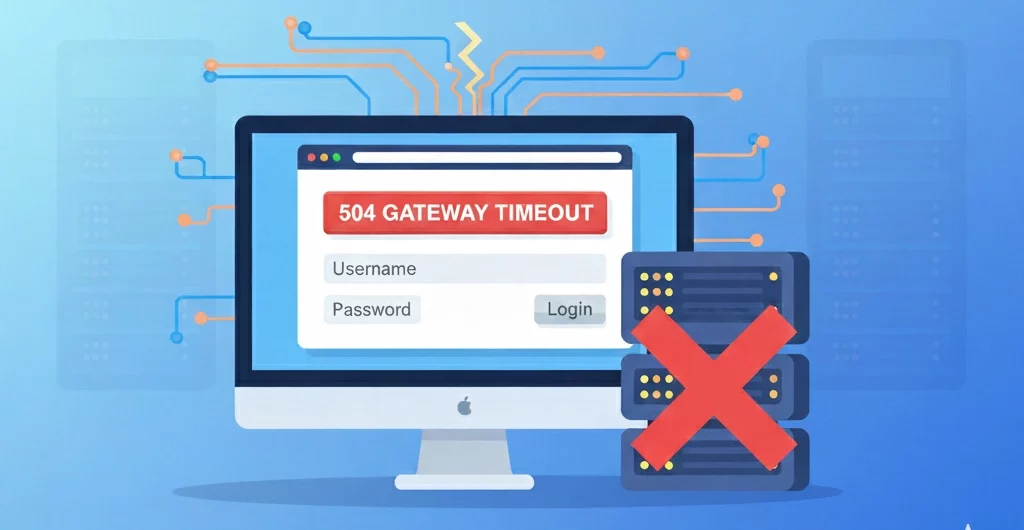
A 504 Gateway Timeout error in Moodle appears when the server handling your login request does not receive a response from another required server within the expected time. Since Moodle relies on multiple backend systems, a delay in any one of them can interrupt the request.
This is a server-side issue linked to the Moodle hosting environment, not your device or internet connection. It commonly appears when the login process takes longer than the allowed response time.
Common Causes of this Error
- Slow database queries or overloaded database connections
- Heavy or slow PHP login scripts
- Delays from external authentication services such as LDAP or SAML
- High login traffic is pushing CPU or memory limits
- Limited PHP workers are unable to handle multiple logins
- Network connectivity issues between servers
- Proxy or CDN-related interruptions
- Firewall or security rules blocking login requests
- Server configuration issues with PHP sessions or file permissions
- Corrupted browser cookies or cache affecting session handling
- DNS issues or unresolved domains
- Upstream server downtime or unresponsiveness
- Web server overload due to excessive requests
When one or more of these issues occur together, Moodle cannot complete the login request within the allowed time, which triggers the 504 error.
Fix Moodle Login Errors Fast Today

Quick Fixes for Users
These steps help clear local issues that can interrupt Moodle login requests. Follow them in order, as many login timeouts clear after basic browser cleanup.
-
Refresh the login page
Reload the page once and wait a few seconds before trying again. A short delay on the server side can trigger a timeout that clears on reload.
-
Clear browser cache and cookies
Open your browser settings and remove cached files and cookies for the Moodle site. Old session data often conflicts with new login requests and slows the response.
-
Use private or incognito mode
Open a private window and visit the Moodle login page. This skips saved cookies and extensions that may interfere with authentication.
-
Try a different browser
Install or open another browser and attempt to log in. Browser extensions or outdated versions often block or delay login requests.
-
Switch devices
Try logging in from another laptop or mobile device. This helps confirm whether the issue is tied to one device or browser setup.
-
Disable VPN or proxy connections
Turn off any VPN or proxy and retry the login. These tools can slow server communication or block required requests.
-
Check login details
Confirm the username and password are correct. If unsure, reset the password and try again to rule out account-related issues.
-
Restart the browser
Close the browser fully and reopen it. This clears background processes that may block session creation.
If login works after these steps, the timeout was likely caused by local data conflicts or temporary connection delays rather than a deeper Moodle server issue.
[Need assistance with a different issue? Our team is available 24/7.]
Conclusion
A Can’t Login Moodle and Error 504 Gateway Timeout issue points to a server delay that stops the login process. While quick checks may help, repeated errors need expert attention.

