


Easily migrate a website from hPanel to CyberPanel VPS with minimal downtime. Our CyberPanel Support team is ready to assist you.
How to Migrate a Website from hPanel to CyberPanel VPS
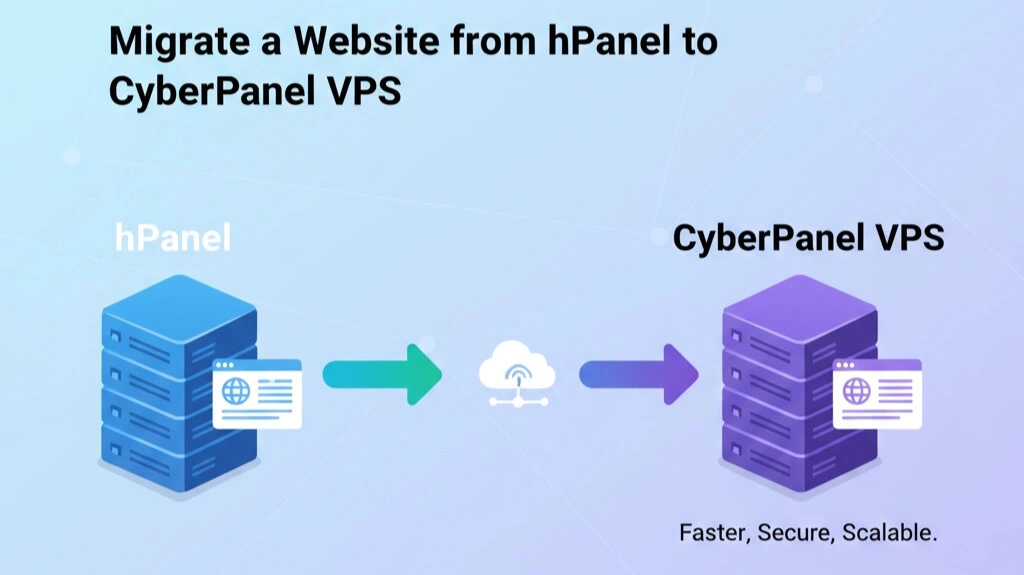
Migrating your website from hPanel to a CyberPanel VPS involves backing up your site, transferring files and databases, configuring your new VPS, and updating DNS settings. Follow these detailed steps to ensure a smooth migration.
Step 1: Back Up Your Website from hPanel
Before moving your website, create a complete backup to prevent data loss.
Backup website files:
Log in to your hPanel account and navigate to the File Manager. Locate your website’s root folder, usually called public_html, and compress it into a .zip or .tar archive. Download this archive to your local computer. This is especially important if you plan to configure a CyberPanel Wildcard Subdomain later, as having a full backup ensures all subdomains remain intact.
Backup the database:
Go to hPanel’s PHPMyAdmin. Select your website’s database and click on the Export tab. Choose the SQL format and save the .sql file to your computer. This file contains all your website’s data, including posts, pages, and user information.
Step 2: Set Up Your CyberPanel VPS
Once your backups are ready, it’s time to prepare your VPS.
Install CyberPanel:
If CyberPanel isn’t installed, follow the installation guide provided by your VPS provider. Some VPS services allow you to select CyberPanel during provisioning for easier setup.
Create a website and database:
Log in to your CyberPanel dashboard and create a new website by entering your domain name and the required settings. After that, create a new database for this website and make a note of the database name, username, and password as you will need these to configure your site. If necessary, you can also change the MySQL Root password in CyberPanel to ensure database security before importing your data.
Upload website files:
Use CyberPanel’s File Manager or an FTP client to upload the .zip archive of your website files to the VPS. Extract the files into the web root directory for your new website, usually /home/yourdomain.com/public_html.
Import the database:
Open PHPMyAdmin in CyberPanel and select the new database. Click Import, choose the .sql file you exported earlier, and start the import process. This restores your website’s content and structure on the VPS.
Need help migrating your website to CyberPanel VPS?

Step 3: Configure and Point Your Domain
After uploading files and databases, configure your website to work on the new server.
Update configuration files:
Edit your website’s configuration files, such as wp-config.php for WordPress. Update the database name, username, password, and host to match your new CyberPanel database.
Update DNS records:
Log in to your domain registrar or use CyberPanel’s DNS editor. Change the A record to point to your VPS IP address. This ensures that your domain directs visitors to the new server.
Test your website:
DNS changes can take up to 24 hours to propagate. After propagation, open your website in a browser and verify that all pages, images, and functionality work correctly. Check plugins, themes, and forms to ensure a smooth transition.
[Need assistance with a different issue? Our team is available 24/7.]
Conclusion
In conclusion, migrating a Website from hPanel to CyberPanel VPS ensures a smooth transition with minimal downtime while keeping your site secure and fully functional.
In brief, our Support Experts demonstrated how to fix the “554 5.7.1 : Relay access denied” error.

