Learn what can break during a WordPress migration, from database and PHP issues to DNS, SSL, email, and caching problems, and how to prevent them.
Many WordPress migration services seem to be completed as soon as the new server loads the home page. It is at that time that the less apparent difficulties start to come up. The images can return 404, the WordPress dashboard may freeze, a plugin may show a critical error, or a contact form may not send emails. Our WordPress migration services help handle these application, server, and configuration dependencies during a migration. Our engineers are well-versed in WordPress environments and understand how to troubleshoot the application, database, PHP runtime, DNS, SSL, and supporting services that can affect a migration.
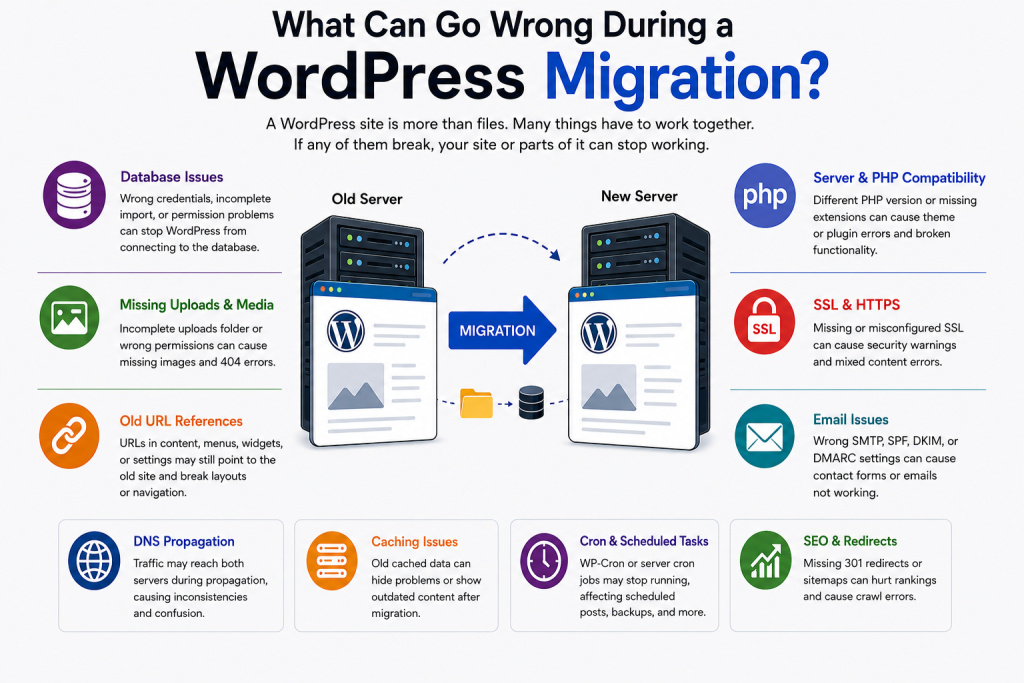
It’s because WordPress requires far more than just its application files. All databases, PHP runtime, themes, plugins, file permissions, DNS, SSL, scheduled tasks, email configuration, and caching layers need to play nicely together on the destination server.
So a migration isn’t simply the act of copying the wp-content folder and importing the MySQL. The destination environment must be compared with the current environment, the application must be tested before and after traffic moves.
An Overview
- What Can Go Wrong During a WordPress Migration?
- Database and File Integrity Come First
- Database Connection Failures
- Missing Uploads and Media
- URLs That Still Reference the Old Site
- The New Server Can Change How WordPress Behaves
- PHP Version
- PHP Extensions
- Plugins and Themes
- Permissions Can Break the Site Without Losing Any Files
- Prepare the Services Around WordPress
- SSL and HTTPS
- DNS
- Cache Can Hide Migration Problems
- Background Tasks Need Testing Too
- Domain Changes Need an SEO Plan
- How to Test the New WordPress Server Before Cutover
- Pre-Migration Checklist
- Post-Migration Checklist
- Conclusion
What Can Go Wrong During a WordPress Migration?
Most migration failures fall into a few areas. Some prevent WordPress from loading at all. Others leave the site looking healthy while a specific function has stopped working.
The database and filesystem are the first dependencies to verify. After that, look at the PHP environment, permissions, and application components. Once those are working, DNS, SSL, email, caching, cron, and SEO need their own checks.
That order matters. There is little value in troubleshooting a plugin when WordPress cannot connect to its database.
Database and File Integrity Come First
Database connection failures
A database problem can stop WordPress before the application renders anything.
The familiar message is:
“Error establishing a database connection.”
On the new server, compare the database settings in wp-config.php with the database that was created for the migration:
- Database name
- Database username
- Database password
- Database hostname
Also check the database import itself. A successful connection does not help if the imported database is incomplete. The database user must also have the permissions required by the WordPress installation.
Testing the migrated site through a temporary URL or hosts-file entry gives you a chance to catch these problems before DNS sends production visitors to the new server.
Missing uploads and media
Media files are another common source of migration errors.
WordPress normally stores uploaded content under:
wp-content/uploads
If this directory was only partially copied, pages can still load while older images and other media return 404 errors. Incorrect file permissions can produce the same result when the files exist but the web server cannot access them.
Check the complete directory after the transfer and verify its permissions.
URLs that still reference the old site
Changing the WordPress Site URL does not update every URL stored in the database.
References can exist in page content, menus, widgets, image paths, and custom fields. This becomes particularly noticeable when the migration also involves a domain change.
Use a WordPress-aware search-and-replace tool rather than performing a basic text replacement across the database. WordPress uses serialized data in several places, and an unsafe replacement can damage that data.
Planning a WordPress migration? Let’s make it seamless.

The New Server Can Change How WordPress Behaves
A working copy of the application does not guarantee compatibility with the destination environment.
PHP version
Check the PHP version before the migration. An older theme may not work correctly on PHP 8.x, while a newer plugin may require PHP 8.1 or later.
For that reason, matching the existing PHP version is usually a safer starting point than combining the migration with a PHP upgrade. Once the site is stable on the new server, the PHP version can be changed and tested separately.
This also makes troubleshooting easier. If something breaks after the move, there are fewer configuration changes to investigate.
PHP extensions
The PHP installation itself may be present while extensions required by WordPress or its plugins are missing.
Depending on the site, check for extensions such as:
- JSON
- cURL
- GD
- Imagick
- ZIP
- mbstring
- XML
A missing extension can affect image processing, external connections, archive handling, or individual plugin features.
Plugins and themes
Plugins can behave differently when the underlying PHP version or server configuration changes. Symptoms range from critical errors and a broken admin dashboard to one feature failing while the rest of the site continues to work.
Custom themes have similar dependencies. Hardcoded URLs, server-specific paths, custom fonts, and external JavaScript libraries may still point to assumptions from the old environment.
Test the functions that matter to the site. Checking that the homepage opens is not enough.
Permissions Can Break the Site Without Losing Any Files
A file transfer can be complete and still leave WordPress unable to use those files.
Ownership and permissions on the destination server determine whether WordPress can upload media, install updates, create cache files, and access required directories. In some cases, the visible symptom is a 403 Forbidden response.
Check the ownership and permissions of the WordPress files and directories after the transfer. Do not solve an access problem by simply making everything writable. The application should have the access it needs without unnecessarily broad permissions.
Prepare the Services Around WordPress
The application may work correctly while the services around it are still misconfigured.
SSL and HTTPS
The destination should have a working SSL certificate before DNS is changed.
Without it, visitors may see:
“Your connection is not private.”
Mixed-content warnings can appear when the site uses HTTPS but some resources are still requested through HTTP.
Install and test SSL first. After HTTPS is working, update remaining HTTP references and clear the browser and CDN caches.
DNS
DNS propagation means the cutover is not necessarily immediate for every visitor. Some users may still reach the old server while others reach the new one.
Lower the DNS TTL before migration and keep the old hosting environment active during propagation. Avoid publishing new content while both servers may still receive traffic, since a change made on one environment will not automatically exist on the other.
Website availability does not tell you whether email is working.
Contact forms may rely on SMTP authentication, while SPF, DKIM, and DMARC records affect email delivery. A DNS change that overlooks those records can leave the website online while mail-related functions fail.
Test the contact forms and SMTP configuration after the move. Send test messages and verify delivery instead of checking only whether the form reports a successful submission.
Cache Can Hide Migration Problems
Caching makes migration troubleshooting less straightforward because the response reaching the browser may not come directly from WordPress.
Possible layers include:
- WordPress cache
- Object cache
- Server cache
- CDN cache
- Browser cache
An old cached response can make a corrected configuration look broken. Conversely, stale content can make a migration appear successful when the new server is not actually serving the response being tested.
Clear the relevant cache layers after the cutover. If a change is not visible, identify which layer is returning the response before making another configuration change.
Background Tasks Need Testing Too
A page-load test does not exercise every part of WordPress.
WP-Cron handles scheduled posts, plugin maintenance, backups, WooCommerce tasks, and email notifications. These jobs can stop running after a migration even though visitors can browse the site normally.
Check WP-Cron after the move. If the installation uses a server cron job instead, verify that the job exists and is executing correctly on the destination.
Domain Changes Need an SEO Plan
A migration that changes the domain or URL structure can affect existing links and search visibility.
Without appropriate 301 redirects, old URLs can return errors and existing backlinks can stop reaching their intended pages. Search engines may also report crawl errors while the new URLs are being processed.
Prepare redirects before launch. Update the XML sitemap, verify the site in Google Search Console, and monitor crawl errors after the change.
How to Test the New WordPress Server Before Cutover
The safest time to find migration problems is while the old site is still serving users.
Use a temporary URL or hosts-file entry to access the new environment and work through the following checks:
- Open the homepage and important landing pages
- Log in to WordPress administration
- Open pages containing older images and media
- Test internal links
- Test important plugin functions
- Check custom theme elements
- Confirm PHP compatibility
- Verify required PHP extensions
- Check file permissions
- Test SSL and HTTPS
- Submit contact forms
- Send test emails
- Verify scheduled tasks
- Review application and server error logs
Do not change DNS simply because the homepage looks correct. The goal of this test is to exercise the parts of the application that are easy to miss during a basic smoke test.
Pre-Migration Checklist
Before starting the cutover:
- Create a complete backup of the WordPress files and database
- Record the existing PHP version and server settings
- Record active WordPress, theme, and plugin versions
- Check required PHP extensions
- Verify database credentials and permissions
- Copy the complete wp-content/uploads directory
- Check available disk space
- Review file ownership and permissions
- Prepare SSL on the destination
- Save current DNS and email records
- Lower the DNS TTL
- Disable caching plugins temporarily where appropriate
- Prepare redirects if the domain or URL structure will change
- Test the destination before changing DNS
Post-Migration Checklist
Once traffic has moved:
- Confirm the homepage and important pages load
- Test WordPress administrator access
- Check images and media
- Test internal links
- Verify plugin and theme functionality
- Confirm HTTPS and check for mixed content
- Test contact forms and email delivery
- Verify SPF, DKIM, and DMARC
- Clear relevant cache layers
- Review application and server error logs
- Check WP-Cron or server cron
- Test 301 redirects
- Verify the XML sitemap
- Check Google Search Console for crawl errors
- Monitor the site for 24 to 48 hours
Conclusion
The difficult part of a WordPress migration is not copying the site. It is making the destination server behave like a working WordPress environment.
A database import can succeed while the uploads directory is incomplete. The site can load while a plugin is incompatible with the new PHP version. DNS can point users to the new server while email records still reflect the old setup. These are separate dependencies, and each needs to be checked.
Test the destination before the cutover, keep the old environment available while DNS changes propagate, and verify background services as well as the pages visitors see.
A successful migration should leave users with the same working application on a different server. They should not have to discover what was missed.