


Improve apps with mobile app development services. Learn how ReformRx used WiFi speed monitoring to diagnose client connectivity issues.
Clients documented hanging screens, content taking a long time to load or not loading at all, and sluggishness in ReformRx. However, the team found it difficult to reproduce these issues, so they checked Sentry logs for clues.
The logs captured application issues, but they did not contain any network information. As a result, we were unable to determine whether the application or a slow network client was at fault. To address this gap, we added WiFi speed monitoring to the ReformRx application and associated Sentry errors with the monitoring.
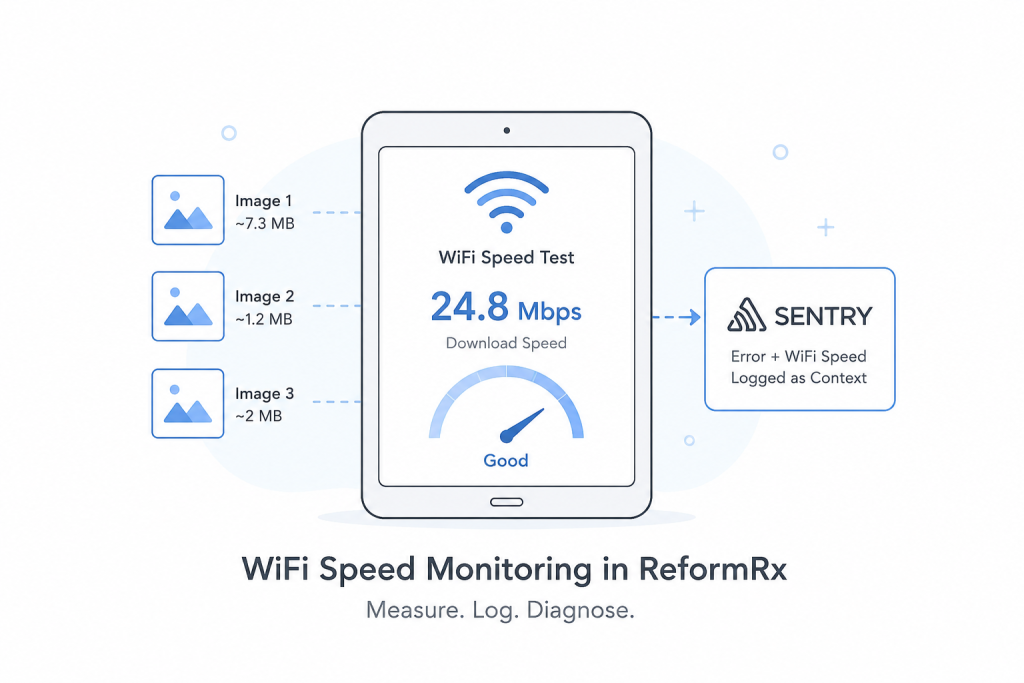
How We Measured WiFi Speed
The speed test uses three images hosted on our server. The app downloads all three images in parallel and measures the time each image takes to load.
| Test image | Size |
|---|---|
| Image 1 | 7,300,000 bytes (~7.3 MB) |
| Image 2 | 1,200,000 bytes (~1.2 MB) |
| Image 3 | 2,000,000 bytes (~2 MB) |
The app calculates the speed using the file size and download time:
- duration = (endTime – startTime) / 1000
- bitsLoaded = fileSizeInBytes × 8
- speedBps = bitsLoaded / duration
- speedMbps = speedBps / (1024 × 1024)
After all three downloads finish, the app averages their speed values. This gives us a more useful reading than a single download, especially when the connection is unstable.
We also add a timestamp to each image URL to avoid using a cached version. Each download has a seven-second timeout, so a slow connection does not leave the test running indefinitely.
Build Smarter Mobile Apps.

The WifiSpeedService
The speed test is run via a WifiSpeedService in Ionic Angular. Both components and resolvers can call getWifiSpeed() to get the speed in Mbps and a formatted value for output or logging.
The service has been designed to handle failure of one or more images, or a speed test failure. As a result, a failed speed test is not a source of app crash.
Connecting Speed Data With Sentry
After the test runs, the measured speed is added to the Sentry event as additional context. When we review an error by user ID, we can see the error, when it happened, and the download speed measured on the device.
This extra information helped us compare application errors with the client’s network conditions instead of treating every issue as an application problem.
What We Found
We reviewed the Sentry data for clients who had reported the most issues. In almost every case, their recorded download speed was well below what ReformRx needed for smooth use.
We asked these clients to improve their WiFi connection or switch to a better network. After they did, the reported issues stopped.
In these cases, we did not need code changes. The speed data showed that poor connectivity was the main issue.
Tech Stack
| Technology | Purpose |
|---|---|
| Ionic Angular | App framework |
| TypeScript | WifiSpeedService |
| Browser Image API | Image downloads and timing |
| Sentry | Error tracking and speed logging |
Conclusion
Adding WiFi speed monitoring gave ReformRx the network information that was missing from its error logs. By measuring download speed on the client’s tablet and linking it to Sentry events, we could quickly identify connectivity-related issues and guide affected clients toward a practical fix.

