Your website is an important part of your business. It helps you connect with customers, share information, generate leads, and, in some cases, handle online payments. But what happens if someone gains unauthorized access to your WordPress website?
You could find your website displaying unfamiliar content, redirecting visitors to suspicious pages, or blocking access to the WordPress dashboard.
Website security problems are not limited to large businesses. Small business websites, personal blogs, and online stores can also become targets of cyberattacks.
The good news is that protecting a WordPress website does not always require advanced technical knowledge. Consistent security practices can significantly reduce common risks and help you respond more effectively when something goes wrong. Or you can partner up with a reliable WordPress support service.
This WordPress security checklist covers practical ways to secure your website, avoid common mistakes, and make security part of regular website maintenance.
Why Should You Take WordPress Security Seriously?
WordPress makes it easy to build and manage a website. Its flexibility comes from a large ecosystem of themes and plugins, but that flexibility also means website owners need to pay attention to security.
An outdated plugin, weak administrator password, or insecure configuration can create an opportunity for attackers.
A compromised website can lead to several problems:
- Your website may become unavailable to visitors.
- Customer information could be exposed.
- Search engines may warn users about your website.
- Your business could lose sales and customer trust.
- Recovering your website may require significant time and effort.
Consider a small online store that depends on its website for daily orders. If a security issue takes the store offline for even a few hours, the owner could lose revenue and customer confidence.
Website security should therefore be treated as part of regular maintenance rather than something to address only after an attack.
1. Keep WordPress and Its Components Updated
One of the simplest ways to improve WordPress security is to keep everything up to date.
WordPress releases updates that improve functionality and address security issues. Plugin and theme developers also release updates when vulnerabilities are discovered.
Leaving your website outdated for an extended period can make it easier for attackers to exploit known vulnerabilities.
What you can do
- Install WordPress security updates promptly.
- Update plugins and themes regularly.
- Remove plugins and themes that are no longer required.
- Check compatibility before major updates.
- Take a backup before making significant changes.
A plugin installed several months ago may later receive an important security update. If the update is not installed, the website could remain vulnerable.
Making updates part of your regular maintenance routine can help prevent this situation.
2. Choose Strong Passwords for Every Account
Your WordPress login is one of the first places attackers may target.
Automated tools can attempt large numbers of common password combinations. A short, predictable, or reused password can make an account easier to compromise.
A strong password should be long, unique, and difficult to guess.
Follow these password practices
- Avoid passwords based on your name or business.
- Never reuse the same password across multiple accounts.
- Use a password manager to generate secure passwords.
- Remove administrator accounts that are no longer needed.
- Avoid sharing login credentials with other users.
Avoid using the default username
adminChanging the username alone does not secure a website, but it can reduce exposure to some common automated login attempts.
3. Add an Extra Layer of Protection with Two-Factor Authentication
A strong password is important, but an additional authentication factor can provide another layer of protection.
Two-factor authentication, commonly called 2FA, requires users to complete an additional verification step during login.
This could be a code from an authenticator app or a security key.
Even if someone obtains your password, they may still be unable to access your account without the second authentication factor.
If you manage a business website, enable 2FA for administrator accounts. It is a simple security measure that can help prevent unauthorized access.
4. Use a WordPress Security Plugin
Security plugins can help monitor your website and protect it against common threats.
Depending on the plugin, features may include:
- Malware scanning
- Login attempt monitoring
- Firewall protection
- File integrity monitoring
- Security notifications
Some widely used WordPress security plugins include Wordfence Security, Solid Security, and Sucuri Security.
Before installing a plugin, make sure it comes from a trusted source and is compatible with your WordPress installation.
A security plugin cannot protect against every possible attack. Use it alongside other measures such as regular updates, backups, and secure hosting.
5. Make Sure Your Website Uses HTTPS
If your website still uses HTTP instead of HTTPS, review your SSL/TLS configuration.
HTTPS encrypts the connection between your website and its visitors. This helps protect information exchanged through login pages, contact forms, and other website features.
A valid SSL/TLS certificate is particularly important if your website collects personal information or handles online transactions.
Check the following
- Your SSL/TLS certificate is valid.
- Your website loads using HTTPS.
- HTTP traffic redirects to HTTPS.
- Your WordPress URLs use HTTPS.
- Your website does not display mixed-content warnings.
HTTPS is an important security measure, but it does not prevent every type of attack. Your website still needs regular updates and monitoring.
6. Keep Regular Backups of Your Website
Imagine spending months building a website only to lose important files or customer information after a security incident.
A reliable backup allows you to recover your website if something goes wrong. It can also help you restore the website after an unsuccessful update or accidental change.
Make backups part of your routine
- Schedule automatic backups.
- Include both website files and the database.
- Keep more than one backup version.
- Store backups in a separate location.
- Test the restoration process occasionally.
Backups are particularly important for online stores because new orders and customer information are added regularly.
A backup from several days ago may not contain the latest orders, so backup frequency should reflect how often your website changes.
Most importantly, don’t assume a backup is reliable just because it exists. Test whether it can actually be restored.
7. Give Users Only the Access They Need
Not everyone working on your website needs administrator access.
WordPress provides different user roles that allow website owners to control what each person can do.
An editor, for example, may need permission to manage articles, while a developer may need administrator access to configure the website.
Giving every user full access creates unnecessary security risks.
Review your user accounts regularly
- Assign appropriate WordPress roles.
- Remove accounts belonging to former employees.
- Avoid shared administrator accounts.
- Review permissions whenever responsibilities change.
- Use separate accounts for individual users.
Proper user permissions can help prevent accidental changes and reduce the risk of unauthorized access.
8. Protect Your Website with a Web Application Firewall
A Web Application Firewall, or WAF, monitors incoming website traffic and can block requests that match malicious patterns.
Depending on its configuration, a WAF may help protect your website against common attacks such as SQL injection, cross-site scripting, and certain known vulnerabilities.
A WAF can operate through a security service, hosting provider, or website security solution.
For example, an attacker might repeatedly send suspicious requests to a vulnerable WordPress plugin. A properly configured firewall may identify and block those requests before they reach your website.
Firewalls also require maintenance. Security rules can sometimes block legitimate requests, so reviewing security logs is important.
9. Remove Plugins and Themes You No Longer Use
It is easy to install a plugin to solve a problem and forget about it later.
Over time, a WordPress installation can accumulate unused plugins and themes. Some may no longer receive updates or may contain known security issues.
Keeping unnecessary software on your website increases the amount of code you need to maintain.
Review your installed plugins and themes regularly. Remove anything you no longer need and avoid installing software from unknown sources.
Be especially cautious with pirated or nulled premium plugins and themes. They may contain hidden code that can compromise your website.
A cleaner WordPress installation is generally easier to maintain and secure.
10. Keep an Eye on Your Website
Security problems are not always immediately obvious.
A website may continue working normally even after malicious code has been added. In other cases, unusual behavior may appear before a more serious problem develops.
Pay attention to changes such as:
- New administrator accounts you did not create.
- Unexpected changes to website files.
- Unfamiliar PHP files.
- Strange redirects.
- Repeated login attempts.
- Unusual website resource usage.
If your website suddenly starts redirecting visitors to an unfamiliar page, it may indicate that something has changed within the website.
Regular monitoring, malware scans, and security log reviews can help identify these problems earlier.
11. Choose a Hosting Environment That Takes Security Seriously
WordPress security is not limited to what happens inside WordPress.
The hosting environment also plays an important role in protecting your website.
A reliable hosting provider can support your security efforts through server maintenance, account isolation, firewall protection, malware scanning, and backup services.
When choosing a hosting provider, consider the following:
- Are server security updates applied regularly?
- Is account isolation properly configured?
- Are malware scanning and firewall protections available?
- Are backups maintained?
- Is technical support available when security issues occur?
Proper account isolation is particularly important for websites hosted on shared servers.
A secure hosting environment works alongside your WordPress security practices to provide multiple layers of protection.
12. Review Your WordPress File Permissions
File permissions determine who can read, modify, or execute files on your server.
Incorrect permissions can create unnecessary security risks.
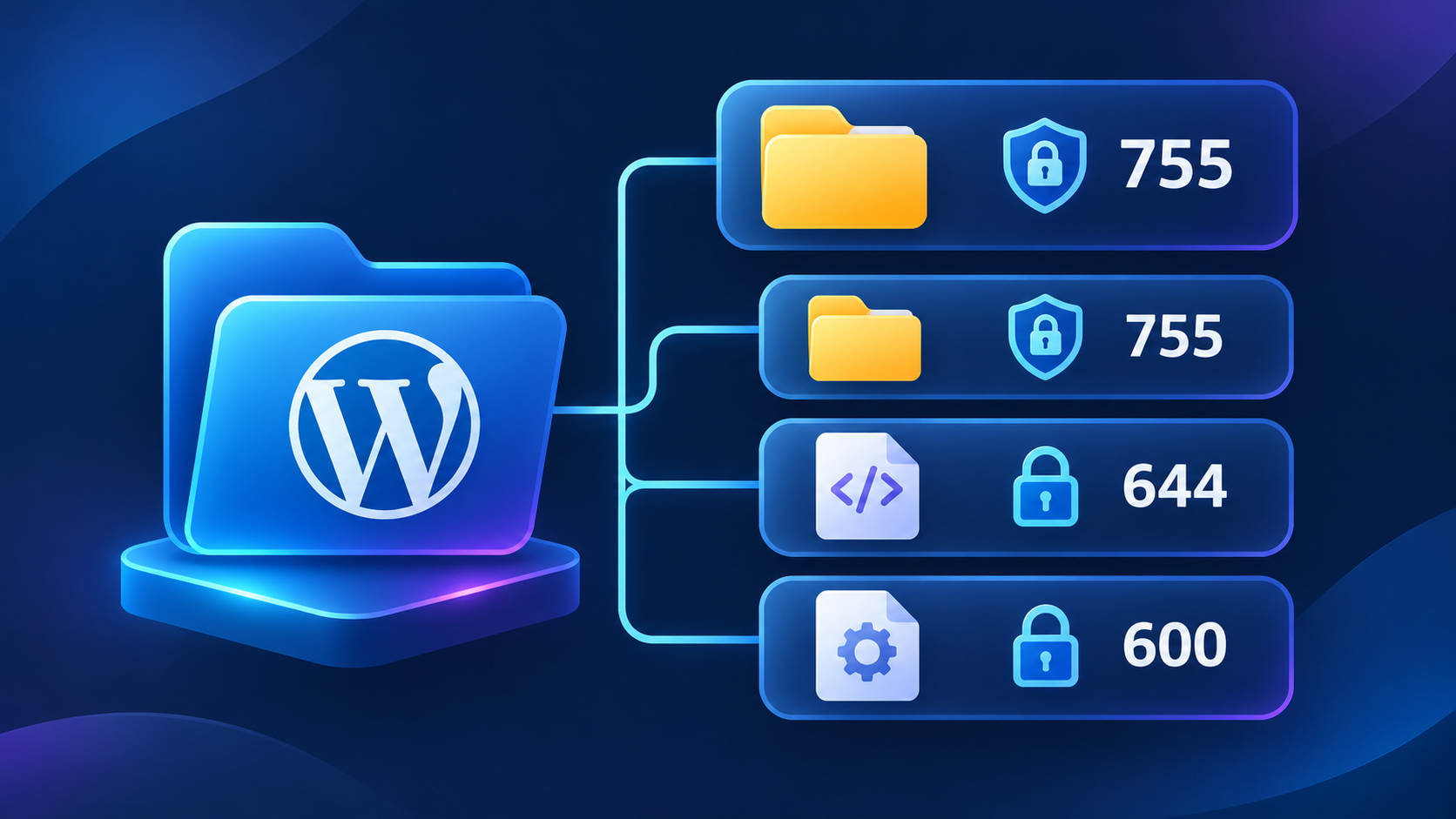
Common permission settings for a typical WordPress installation include:
| File or Directory | Typical Permission |
|---|---|
| Directories | 755 |
| Files | 644 |
| wp-config.php | 600 or 640, where supported |
These are general recommendations. The correct settings can vary depending on your hosting environment.
Avoid setting files or directories to
777If you are unsure about your file permissions, contact your hosting provider before making changes.
What If Your WordPress Website Has Already Been Hacked?
If you suspect that your website has been compromised, do not panic. The first step is to respond carefully and identify the cause.
Start by contacting your hosting provider and reviewing the available security information.
You may need to:
- Change your WordPress and hosting passwords.
- Review administrator accounts for unauthorized users.
- Scan your website files and database for malicious code.
- Investigate suspicious changes and security logs.
- Restore from a known-clean backup if necessary.
- Update WordPress, plugins, and themes.
- Review your security settings before bringing the website fully back online.
Simply deleting a suspicious file may not solve the problem. Attackers can leave additional backdoors that allow them to regain access.
A proper investigation should identify how the website was compromised and address the underlying issue.
Your WordPress Security Checklist
Use this checklist to review the current security of your WordPress website:
- WordPress core is updated.
- Plugins and themes are updated.
- Unused software has been removed.
- Strong, unique passwords are in use.
- Two-factor authentication is enabled.
- Administrator permissions are reviewed.
- HTTPS is configured correctly.
- Regular backups are available and tested.
- A trusted security solution is installed.
- A Web Application Firewall is configured.
- File permissions are appropriate.
- Security logs and website activity are monitored.
- Hosting-level security protections are enabled.
Conclusion
Many security improvements start with consistent maintenance, such as updating software, using strong passwords, keeping reliable backups, and reviewing user access.
A properly maintained and regularly monitored website is better prepared to deal with common security threats.
A personal blog, business website, or online store can all benefit from regular security reviews. Taking time to check your WordPress security today can help prevent much bigger problems later. If you are pressed for time, our WordPress Support service can take this off your plate.