


Emails landing in spam due to reverse DNS and SMTP banner mismatches? Our cPanel Support team helps restore reliable email delivery fast.
Reverse DNS Does Not Match SMTP Banner: Why Emails Fail and How to Stop It
Email delivery issues often start with small server identity mismatches. Reverse DNS Does Not Match SMTP Banner is one such issue that weakens trust between mail servers and disrupts email delivery.
When receiving servers cannot verify a consistent sender identity, emails face spam filtering, delays, or rejection. Understanding this error helps protect the sender’s reputation and keep messages reaching inboxes.
Reverse DNS Does Not Match SMTP Banner
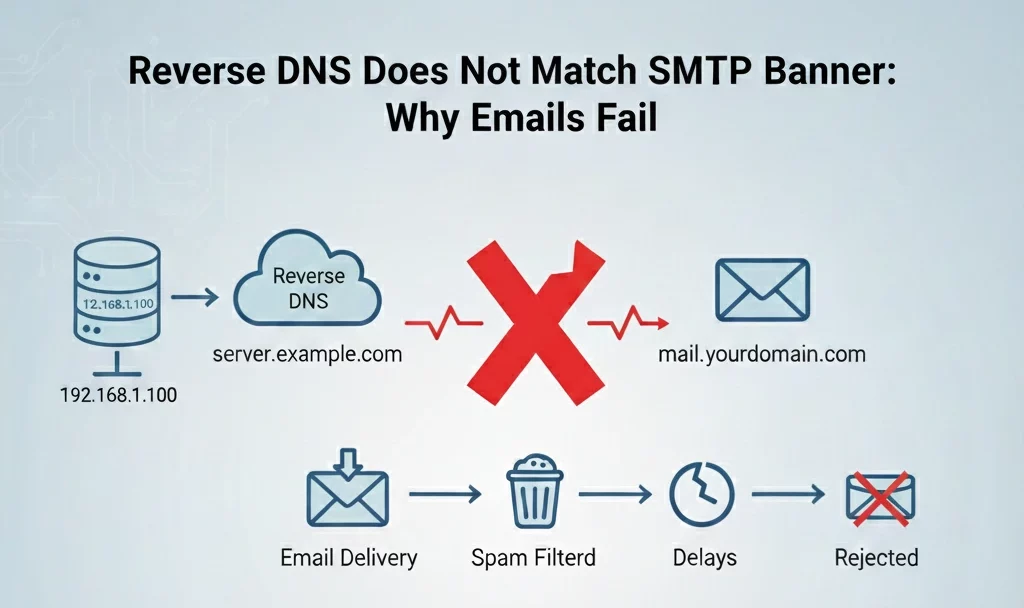
This error occurs when an email server shows different domain names in its reverse DNS record and SMTP banner. Receiving mail servers see this mismatch as a trust issue.
Reverse DNS connects an IP address to a domain name, while the SMTP banner identifies the mail server during connection. When these two names do not match, emails often face spam filtering or delivery delays.
Keeping both set to the same fully qualified domain name helps maintain sender trust and improves email delivery.
Fix email delivery issues today

Key Impacts on Email Delivery
- Email blocking and rejection: Mail providers such as Gmail and Outlook often block or quarantine messages when they detect this mismatch.
- Higher spam filtering: Emails receive higher spam scores and land in junk folders more frequently.
- Loss of sender trust: Repeated failures damage the reputation of the domain and IP address, affecting future email delivery.
- Risk of blacklisting: Ongoing mismatches can lead to IP or domain blacklisting, disrupting all outbound email.
- Unstable communication: Business emails may face delays, inconsistent delivery, or complete failure.
Common Causes
- Mismatched hostnames: The PTR record points to one hostname, while the SMTP banner shows a different name. This often happens when the server hostname and mail settings are configured separately.
- Incorrect PTR record: The hosting provider assigns a default or incorrect PTR record for the IP address. Since PTR records are controlled by the IP owner, this issue is common.
- Outdated mail server configuration: After changing IPs or server names, the SMTP banner still uses the old hostname, creating inconsistency.
- Missing reverse DNS record: The sending IP has no PTR record at all. Many mail providers treat this as a serious trust issue.
- Shared IP usage: Multiple domains send mail from the same IP. The PTR record can point to only one hostname, which may not match all senders.
Resolution Steps with Commands
Step 1: Check the PTR record
Run a reverse DNS lookup and note the hostname returned.
Linux or macOS
nslookup your.ip.addressWindows
nslookup -type=PTR your.ip.addressThe result should return a single hostname, such as mail yourdomain com.
Step 2: Check the SMTP banner
Connect to the mail server and look at the greeting message.
telnet mail.yourdomain.com 25The response line starting with 220 shows the SMTP banner hostname.
Step 3: Verify the A record
Confirm that the PTR hostname points back to the same IP.
nslookup mail.yourdomain.comThe IP address returned here must match the sending server IP.
Step 4: Correct the mismatch
If the PTR record is wrong
Contact your hosting provider or ISP and request the PTR record to be updated to the correct hostname.
If the SMTP banner is wrong
Postfix example
postconf -e myhostname=mail.yourdomain.com

systemctl restart postfix
Exim example in WHM
Set the SMTP banner to use the server hostname and restart Exim from the service manager.
Step 5: Retest
Repeat the DNS and SMTP checks. Use mail testing tools such as MXToolbox to confirm the error no longer appears.
Preventing Reverse DNS Does Not Match SMTP Banner
This error can be avoided by keeping your mail server identity consistent across DNS and SMTP settings.
Key prevention steps
- Set the PTR record of your sending IP to one fully qualified domain name, such as mail.yourdomain.com, through your hosting provider
- Configure the SMTP banner or HELO name to use the same hostname
- Create an A record for the same hostname that points to the sending IP
- Ensure the domain has a valid MX record pointing to that hostname
- Use a dedicated IP when possible to avoid reverse DNS conflicts
- Run periodic checks using tools like MXToolbox, especially after server or DNS changes
Technical Recommendations
- Always match the SMTP banner hostname with the reverse DNS PTR record
- Use a valid, fully qualified domain name for the mail server identity
- Ensure the PTR hostname has a matching A record pointing to the sending IP
- Configure HELO or EHLO to announce the same hostname
- Keep mail server hostname settings updated after IP or server changes
- Prefer a dedicated IP for email to avoid reverse DNS conflicts
- Run regular checks using tools like MXToolbox to catch mismatches early
[Need assistance with a different issue? Our team is available 24/7.]
Conclusion
Reverse DNS does not match the SMTP banner, cPanel errors weaken mail server trust, and hurt inbox delivery. Aligning reverse DNS, SMTP banner, and DNS records restores credibility and protects email flow. For reliable results, connect with a cPanel email expert and keep your messages reaching inboxes.

