


Ensure seamless uptime by migrating virtual machines using VMware vMotion. Our VMware Support team is ready to assist you.
VMware vMotion in Cloud Automation Manager
Cloud Automation Manager supports VMware vMotion to migrate virtual machines between ESX servers, datastores, or even from one vCenter to another. You can perform these migrations through the VMware vSphere console or the IBM Cloud Automation Manager interface. This flexibility helps maintain system uptime and ensures efficient workload management.
Understanding VMware vMotion
VMware vMotion enables the live migration of running virtual machines between physical hosts without any service interruption. It helps maintain uptime during maintenance activities, optimizes workload distribution, and simplifies resource management.
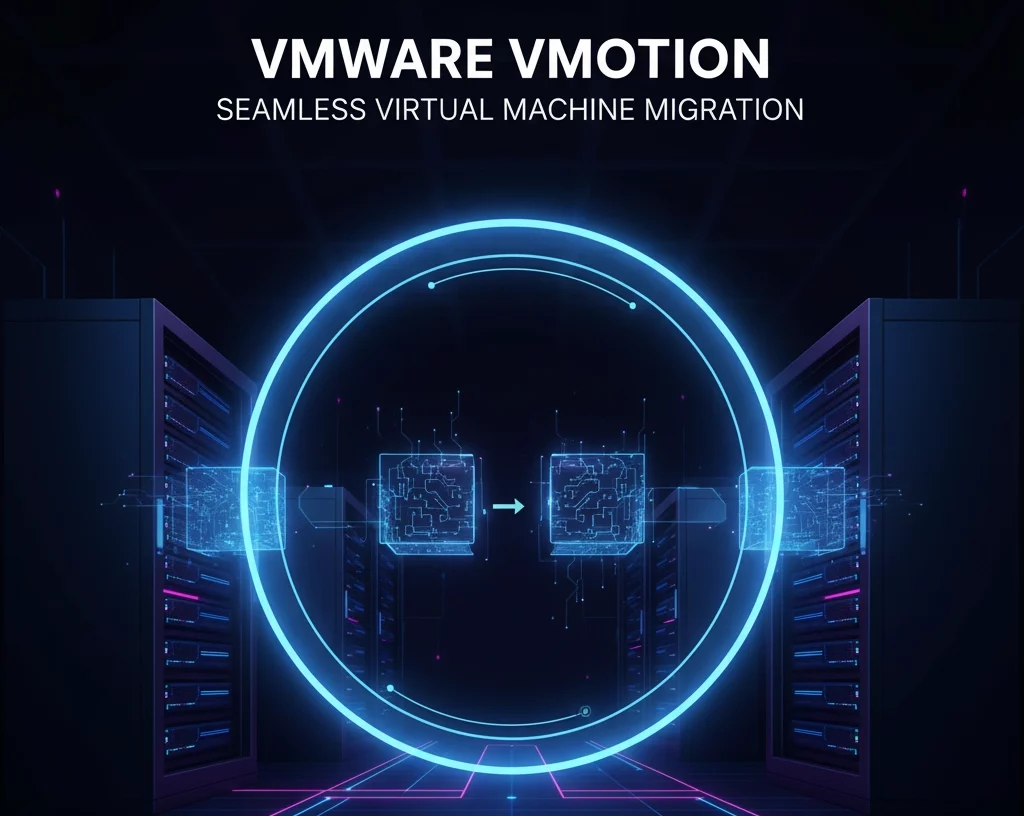
Storage vMotion extends this capability by allowing the migration of virtual machine disk files between datastores, enhancing both performance and storage flexibility.
Migration Using Cloud Automation Manager
You can easily migrate virtual machines within Cloud Automation Manager by modifying deployed instances or using the migration option.
Steps to Follow
- First, log in to IBM Cloud Manager and navigate to the Deployed Instance section under the Template tab. Open your deployed instance and select Modify.
- Next, choose a new template version if available and adjust the parameters for Cluster and Storage. Plan and apply these changes to redeploy the virtual machine to a new host or storage.
- After completing the process, review the virtual machine’s operation to confirm success.
Migration Using VMware vSphere Client
You can also perform the migration through the VMware vSphere client using VMware vMotion.
Migrating to a Different Host
Start by logging in to the vSphere client. Right-click the virtual machine and select the Migrate option. Choose Change Host as the migration type and select the destination host. A compatibility check runs automatically to ensure the migration can proceed. Select the desired vMotion priority for optimal performance and complete the migration. Before starting, ensure that you have installed VMware Workstation Pro 17 on your management system for seamless client operations.
Migrating to a Different Datastore
Begin by logging in to the vSphere client and opening the migration wizard. Select Change Datastore as the migration type and choose the target datastore. Review the configuration details and finalize the process. Once done, log in to Cloud Automation Manager and confirm that the virtual machine operates as expected.
Best Practices for Successful vMotion
To achieve a smooth migration experience, use a dedicated network for vMotion traffic to ensure stable connectivity. Enable jumbo frames to enhance data transfer speeds and keep both the hosts and vCenter updated to avoid compatibility issues. Regularly monitor CPU and memory usage on the target hosts and implement DRS policies within Cloud Automation Manager for balanced performance.
Limitations
VMware vMotion does not support cross-cluster migrations. Therefore, it is essential to ensure that the storage and network configurations meet VMware compatibility requirements before beginning the migration process.
[Need assistance with a different issue? Our team is available 24/7.]
Conclusion
In conclusion, migrating virtual machines using VMware vMotion ensures seamless workload movement without downtime. It enhances performance, simplifies maintenance, and keeps business operations uninterrupted. With the right configuration and planning, organizations can achieve efficient resource utilization and maintain a highly available virtual environment.
In brief, our Support Experts demonstrated how to fix the “554 5.7.1 : Relay access denied” error.

