


This article was originally published in 2019 and has been fully updated in March 2026 to reflect the latest Gmail security and authentication policies.
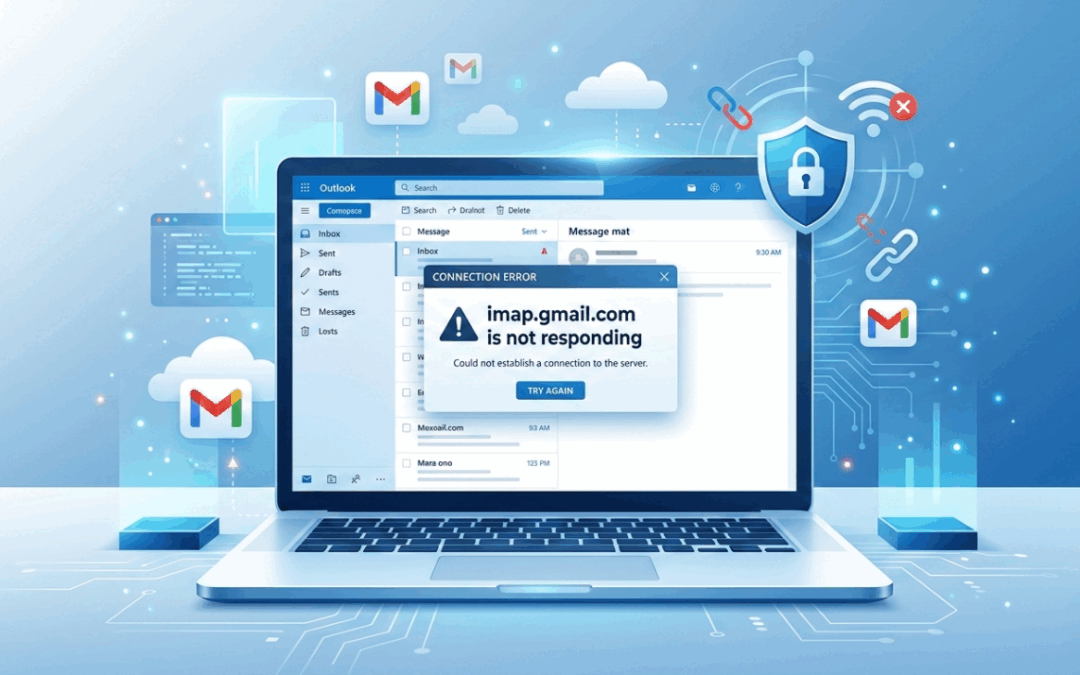
Seeing the error “imap.gmail.com is not responding” can be frustrating. You open your mail client, and nothing syncs. The inbox stays empty, and new emails refuse to load.
This usually happens in apps like Microsoft Outlook or Apple Mail when they fail to connect to Gmail servers.
The good news is that this issue is common and fixable. Our experts offer a clear explanation of why it happens and what you can do to solve it.
An Overview
- Why Does This Error Appear?
- Important: Gmail Login Rules Have Changed
- Step 1. Check the Correct Gmail Server Settings
- Step 2. Make Sure IMAP Is Enabled in Gmail
- Step 3. Create an App Password
- Step 4. Review Outlook Configuration
- Step 5. Check Your Internet and Firewall
- Step 6. Remove and Add the Account Again
- Step 7. Check Google Account Security Alerts
- If You Use Google Workspace
- What No Longer Works
- Quick Troubleshooting Table
- Frequently Asked Questions
Why Does This Error Appear?
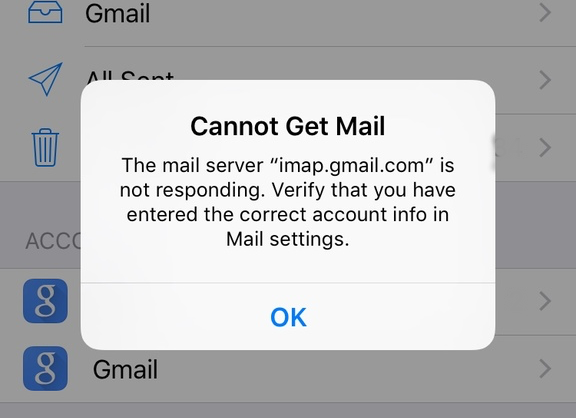
The message appears when your mail app cannot establish a secure connection to Gmail’s IMAP server.
Common reasons include:
- Incorrect IMAP or SMTP settings
- Authentication failure
- IMAP is disabled in Gmail settings
- Firewall or antivirus is blocking the connection
- Weak internet connection
- Corrupt mail profile in Outlook
Authentication errors have increased since Google updated its security policy in 2022.
Important: Gmail Login Rules Have Changed
Google no longer allows basic username-and-password login for most third-party apps. “Less Secure Apps” access was permanently removed in 2022.
If you are still using only your Gmail password in Outlook or Apple Mail, the connection may fail.
You now need:
- App Passwords with 2-Step Verification enabled
- Or OAuth sign-in
This is one of the most common reasons behind the error today.
Step 1. Check the Correct Gmail Server Settings
Make sure your mail client uses these settings:
- Incoming Mail (IMAP)
- Server: imap.gmail.com
- Port: 993
- Encryption: SSL/TLS
- Authentication: Required
- Outgoing Mail (SMTP)
- Server: smtp.gmail.com
- Port: 465 with SSL
- Port: 587 with STARTTLS
- Authentication: Required
Even a small mistake in the port number or encryption type can block the connection.
Step 2. Make Sure IMAP Is Enabled in Gmail
IMAP access must be enabled inside Gmail.
- Open Gmail in a browser
- Click Settings
- Select See all settings
- Open Forwarding and POP/IMAP
- Enable IMAP
- Save changes
If IMAP is disabled, your email client will never connect.
Step 3. Create an App Password
If your login keeps failing, generate an App Password.
- Sign in to your Google Account
- Enable 2-Step Verification
- Open Security settings
- Select App Passwords
- Generate a password for Mail
- Use this password in your mail client
This replaces your regular Gmail password in Outlook or Apple Mail.
Step 4. Review Outlook Configuration
In Microsoft Outlook:
- Go to File
- Open Account Settings
- Select your Gmail account
- Click Update
- Confirm that port 993 and SSL are enabled
Add-ins or a damaged profile can also cause syncing issues. Creating a new profile often fixes stubborn errors.
Step 5. Check Your Internet and Firewall
A slow or unstable connection can interrupt IMAP communication. Restart your router and test another network if possible. In some cases, firewall or antivirus software may block secure mail ports. Temporarily disable them to test. If the issue disappears, add an exception for your mail app.
Step 6. Remove and Add the Account Again
Account settings sometimes get corrupted. On iPhone or Mac using Apple Mail:
- Open Settings.
- Go to Mail.
- Delete the Gmail account.
- Add it again.
Re-adding refreshes the connection and often clears hidden configuration errors.
Step 7. Check Google Account Security Alerts
Google may block a login attempt from a new device.
Open your Google Account security page and review recent activity. Approve any blocked sign-in attempts.
Security page: https://myaccount.google.com/security
This step is often missed, leading to the error message “imap.gmail.com Is Not Responding”.
If You Use Google Workspace
Accounts under Google Workspace may have IMAP disabled by the administrator. Contact your domain admin to confirm IMAP access is allowed.
Advanced Check: Test Server Connectivity
If you are comfortable using command line tools, test connectivity using:
openssl s_client -connect imap.gmail.com:993A successful response confirms the server is reachable from your network.
What No Longer Works
- Using only your Gmail password in third-party apps
- Enabling “Less Secure Apps”
- Manual SSL configuration on Gmail servers
These are outdated methods and should not be used.
Quick Troubleshooting Table: imap.gmail.com Is Not Responding
| Issue | Possible Cause | What to Check | Recommended Fix |
|---|---|---|---|
| Connection timeout | Wrong port or encryption | IMAP port 993 and SSL/TLS | Correct server settings |
| Login failed | Password authentication blocked | 2-Step Verification enabled | Create and use an App Password |
| IMAP not syncing | IMAP is disabled in Gmail | Forwarding and POP/IMAP tab | Enable IMAP and save changes |
| Cannot send email | Incorrect SMTP settings | smtp.gmail.com port 465 or 587 | Enable authentication and correct the port |
| Sudden disconnection | Firewall blocking secure ports | Port 993 and 465 are not blocked | Add an exception in the security software |
| Persistent sync errors | Corrupt mail profile | Outlook profile settings | Create a new mail profile |
Frequently Asked Questions
Why is imap.gmail.com not responding in Outlook?
This usually happens due to incorrect server settings, blocked ports, or outdated authentication. Gmail no longer allows basic password login for most third-party apps. Creating an App Password in your Google Account often resolves the issue.
Does Gmail still support IMAP?
Yes. Gmail fully supports IMAP. IMAP should be enabled in Gmail settings under Forwarding and POP/IMAP before it works in mail clients.
What are the correct Gmail IMAP settings?
Incoming server: imap.gmail.com
Port: 993
Encryption: SSL/TLS
Outgoing server: smtp.gmail.com
Port: 465 with SSL or 587 with STARTTLS
Authentication: Required
These are the official settings provided by Google.
Do I need an App Password for Gmail in Outlook?
Yes, in most cases. If you use Microsoft Outlook or Apple Mail, you must enable 2-Step Verification and generate an App Password. Basic password login is no longer supported.
How do I enable IMAP in Gmail?
Open Gmail in a browser and go to Settings. Then, click See all settings. Next, open the Forwarding and POP/IMAP tab. Finally, select Enable IMAP and save changes.
Conclusion
The error message “imap.gmail.com Is Not Responding” usually points to a configuration or authentication issue. Most cases are resolved by correcting server settings or switching to an App Password. Checking Gmail security activity also helps.
If the issue continues after these steps, the problem may be linked to local firewall rules or a damaged mail profile. Talk to our Server management support team if you need further help.


Can’t get email to respond
Hello Peggy,
I just wanted to know if you still have problems with email. We’ll be happy to talk to you on chat (click on the icon at right-bottom).
Can’t get my Email to read them will not download new ones but yet is there’re in box
Hi,
Please contact our support team through live chat (click on the icon at right-bottom).
I can received e mails on my mobile phone but cannotreceive or send on my computer with the same address – “sending of message failed because the message could not be sent because the connection to outgoing server (SMTP) smtp.gmail.com was lost in the middle of the transaction”
it also says “the mail server imap.gmail.com is not responding”
Hello,
It looks like a problem with connection or settings. Can you please check if you can connect to imap.gmail.com from your computer using telnet command?If you need further assistance, we’ll be happy to talk to you on chat (click on the icon at right-bottom).
I keep getting and IMAP error and tells me to try back later. It will not allow me to log in please help
Hello Samantha,
Are you able to connect to the mail server using telnet command? If you still get an error and need help, we’ll be happy to talk to you on chat (click on the icon at right-bottom).
Please help me to reconnect to Thunderbird
Hello Chris,
Have you regained access? If you still have errors and need help, we’ll be happy to talk to you on chat (click on the icon at right-bottom).
Thanks, per your delete and add suggestion of my msn account , I was able to fix my issue
Plz request mi soul my problems
Hi Rohan,
We are happy to help you. To contact our support team, please initiate a chat from the icon at right-bottom.
I experienced same issue not receiving anymore emails and only getting a message that the mail server imap.gmail.com is not responding”. I just fallowed your advice to delete the account from my phone and then added back . No more errors . I’m glad I decided to go on line and search for answers.
Bobcares.com fixed my phone and email. Thank you .
I have just followed your delete & add instructions but now I cannot enter my email on any server
Hi,
Our Experts can help you with the issue, we’ll be happy to talk to you on chat (click on the icon at right-bottom).
I have one gmail account that has been added to Apple Mail on three computers (2 MacBook Pros and one iMac) and 4 iPhones. All of these devices are receiving the same error message and it all started happening today around 3:00 PM. Any ideas as to why all of them would have trouble all at the same time? I doubt it’s a settings issue since none of use changed anything…the mail just stopped being pushed to our Apple Mail apps.
Hi,
Please contact our support team via live chat(click on the icon at right-bottom).