


Practical guide to migrate a website from other server to plesk steps with ease. Our Plesk Support team is ready to assist you.
Migrate a Website from Other Server to Plesk
Plesk is one of the most popular hosting control panels, trusted for managing domains, websites, databases, and emails from a single dashboard. If you are moving a website to a new server, trying to log in for the first time, or struggling to reset your administrator password, this guide will help you through the most common scenarios.
Migrating Websites Without Plesk
Not every server runs Plesk, but you can still transfer your website smoothly by using the Site Import Extension. This tool connects to your old hosting through FTP or SSH and automatically copies your content into Plesk.
The process begins by installing the extension from the Extensions Catalog. Once installed, you can go to Websites and Domains, select the target domain, and start the Website Importing wizard. Enter the old domain name and the FTP or SSH credentials. After confirmation, the transfer begins.
While the tool makes migration easier, some problems may appear. The most common ones include failed connections due to incorrect credentials or firewall rules, missing files if the account does not have permission to access all directories, and timeouts on very large transfers. Databases often require a separate export and import process through phpMyAdmin or command line tools. After finishing the migration, always review your website carefully because certain scripts or custom modules may need manual adjustments.
Migrating Websites With Plesk
When both servers use Plesk, migration is much faster and more reliable. You can rely on the Plesk Migrator Tool, which copies files, databases, and configurations automatically.
Steps to follow:
- Install the Plesk Migrator Tool from the Extensions Catalog
- Open My Extensions and launch Plesk Migrator
- Provide details of the source server such as IP address, SSH port, and administrator credentials
- Select the subscriptions or domains you want to move
- Start the migration and wait until the process completes
Another method is through Backup Manager. You can create a backup on the source server, download it, and then upload it to the destination server for restoration. This is useful when you do not have root access.
For people switching from other control panels such as cPanel or DirectAdmin, Plesk Migrator supports direct transfers as well. In cases where your old setup is custom, a manual copy of files and database imports may be required. At this stage, some users also take the opportunity to Add MongoDB To Plesk, especially if their applications depend on it. Doing so ensures the migrated website has the same database environment as the old server.
Whatever approach you choose, remember to test your website thoroughly and update DNS records after migration.
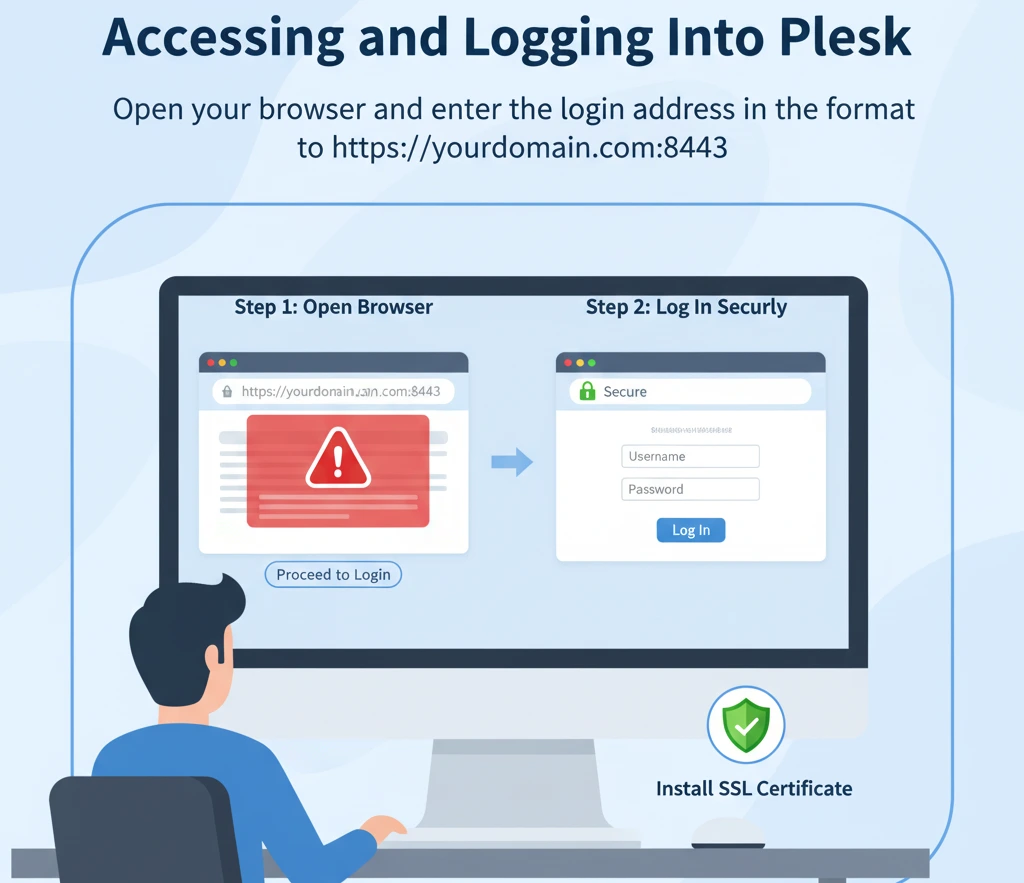
Accessing and Logging Into Plesk
Once your Plesk server is ready, logging in is straightforward. Open your browser and enter the login address in the format https://yourdomain.com:8443. If you see a browser warning, it usually means the panel is not secured with a valid SSL certificate yet. You can proceed for now, but installing a certificate later is recommended for safety.
On the login screen, enter your username and password. In most cases, the default username is admin. When login errors appear, the cause is often simple. Credentials may be typed incorrectly, the server might not be running, or the firewall may block port 8443. Installing a Let’s Encrypt certificate from the SSL/TLS settings also helps remove security warnings. For additional security practices, you can configure options such as Plesk Remove X-Powered-By, which prevents the server from exposing unnecessary information in response headers.
Recovering a Forgotten Password
For regular users, resetting a password is quick. You only need to click the Forgot your password option on the login screen, enter your email address, and follow the link sent to your inbox.
If the email does not arrive, make sure to check the spam folder and confirm that the account is linked to the correct email address. If all else fails, contact your hosting provider.
Administrators have more control. They can reset passwords from the panel itself or use the command line. For example, on Linux servers you can run:
plesk bin admin --set-admin-password -passwd "newpassword"This guarantees access even if recovery emails fail.
Resetting the Administrator Account
Sometimes you may need to reset the administrator password directly. The method depends on your operating system.
On Linux servers, log in as root through SSH and run:
plesk bin admin --set-password -passwd 'newpassword'On Windows servers, log in with Remote Desktop, open Command Prompt as Administrator and use:
"%plesk_bin%\plesksrvclient" -set newpasswordWhen you create a new password, always follow best practices. Use a long combination of uppercase, lowercase, numbers, and symbols. Avoid reusing old credentials and store your passwords in a secure password manager.
Logging Into Plesk Without a Password
There are times when you cannot use or reset a password immediately. In such cases, Plesk allows login through a one time token. You can generate this by connecting to the server with SSH or Remote Desktop and typing:
plesk loginThis command provides a temporary link that lets you access the panel once without entering a password. It is a convenient feature during setup or recovery but should be used carefully. After logging in with a token, always change the password to keep your server secure.
[Need assistance with a different issue? Our team is available 24/7.]
Conclusion
If you plan to migrate a website from other server to Plesk steps, the process is simple when you use the right tools like Site Import or Plesk Migrator. With proper credentials and a quick site review after transfer, you can complete the migration smoothly and keep your website running without issues.
In brief, our Support Experts demonstrated how to fix the “554 5.7.1 : Relay access denied” error.

