


Learn Windows Server Migration practices, upgrade paths, licensing, testing, and downtime strategies with key Windows server management services.
Windows Server migrations succeed or fail based on decisions made weeks before anyone touches production. This guide breaks down the critical choices, including upgrade paths, in-place vs. fresh migration, licensing pitfalls, assessment essentials, and proven techniques to keep downtime minimal so your project stays predictable and your users stay productive.
An Overview
- Supported Windows Server Upgrade Paths
- In-Place Upgrade vs. Fresh Server Migration: Which Fits Better?
- Common Issues That Cause Delays
- Licensing Considerations That Impact Budget
- Pre-Migration Assessment Best Practices
- Testing & Validation Strategies
- Backup Validation: Prove Recovery Works
- Strategies for Minimal (or Near-Zero) Downtime
- When to Reevaluate On-Prem vs. Cloud/Hybrid
- Rollback Planning
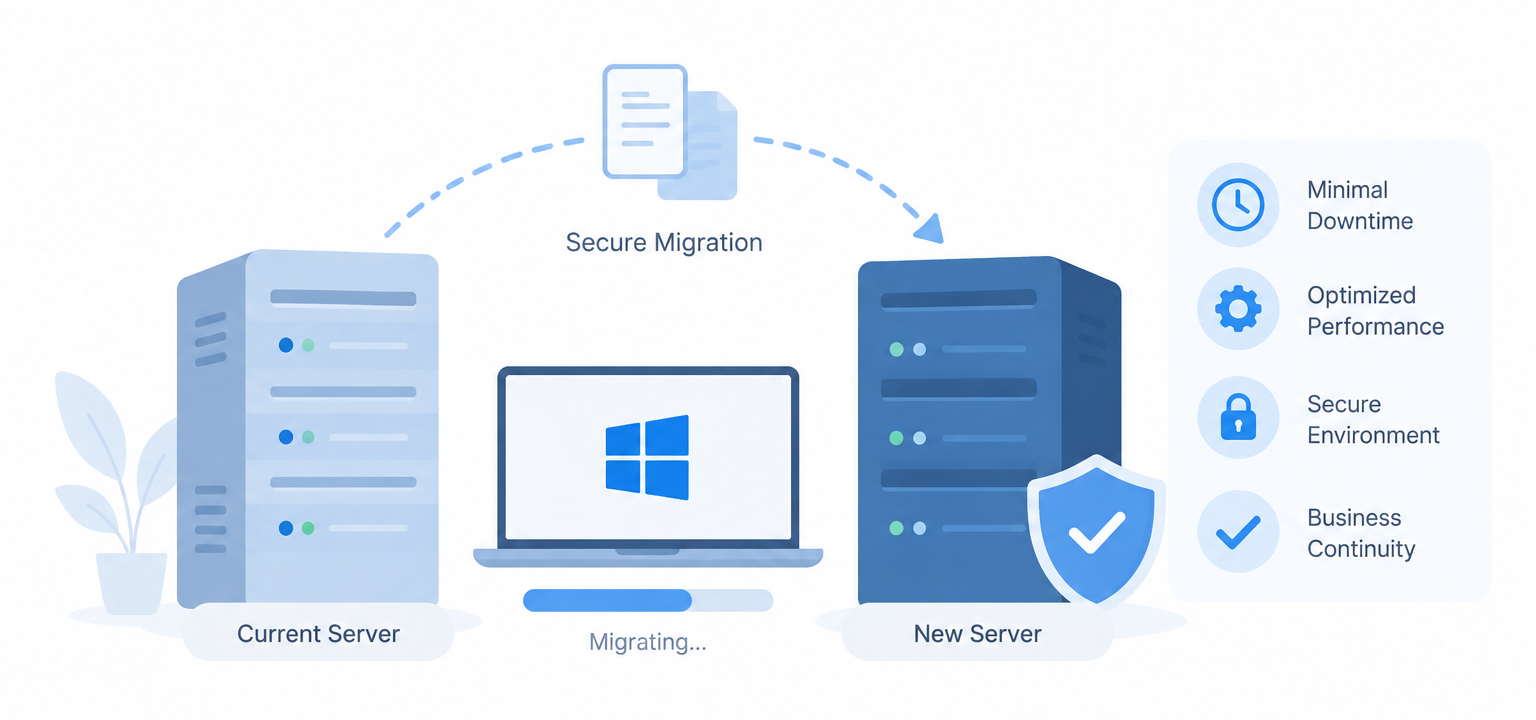
Supported Windows Server Upgrade Paths
Not all Windows Server versions support direct upgrade to the latest version. There are some in-place upgrade paths that are supported by Microsoft; in Windows Server 2025, they are more flexible. In some scenarios, Windows Server 2025 supports a direct upgrade from older supported versions for non-clustered systems. Clusters can have only one OS version at a time, though, via Cluster OS Rolling Upgrade. Clean installs are still part of the repertoire for many organizations where they are looking to make a large version change or to avoid legacy problems.
Always verify the supported upgrade path against current Microsoft guidance early. Assuming that a direct upgrade is supported is one of the fastest ways to create last-minute problems.
In-Place Upgrade vs. Fresh Server Migration: Which Fits Better?
Use In-Place Upgrade If
- Your environment is small, well documented, and relatively clean.
- You need to preserve complex configurations quickly.
- Downtime windows are extremely tight, and your risk tolerance is low.
Use Fresh Server Migration: Recommended for Most Production Workloads If
- The server has years of undocumented changes, legacy services, or temporary fixes that became permanent.
- You’re moving to new hardware with different core counts.
- You want a clean, optimized, and supportable environment going forward.
Plan Your Server Migration.

Pros of In-Place Upgrade
- Faster initial execution.
- Retains most existing settings and configurations.
- Lower immediate risk of breaking custom integrations.
Cons of In-Place Upgrade
- Carries forward old drivers, service accounts, scheduled tasks, and misconfigurations.
- Provides less opportunity to clean up technical debt.
- Offers limited opportunity to right-size or modernize the environment.
Pros of Fresh Migration
- Gives you complete control over what moves forward.
- Provides a natural opportunity to retire unused shares, jobs, and applications.
- Creates a cleaner environment with better long-term maintainability and security.
Cons of Fresh Migration
- Requires more upfront discovery and planning.
- Needs thorough testing of all dependencies.
Common Issues That Cause Delays
Windows Server doesn’t refuse to install. There is very little that will go wrong with the installation because it is a technical problem. Rather, they are typically the applications and configurations that run atop it.
Typical culprits include hard-coded hostnames or IP addresses in scripts or configuration files, outdated frameworks or database versions, service accounts with undocumented permissions, and scheduled tasks that reference retired systems.
The more invisible history that a server has, the longer it has been in production. These problems don’t arise during the maintenance window because they are discovered thoroughly during the assessment.
Licensing Considerations That Impact Budget
Licensing is frequently reviewed too late. The modern licensing of Windows Server is core-based, which means a minimum of 16 core licenses per server and 8 per physical processor. New hardware frequently comes with a lot more cores, and this can directly raise licensing costs if you aren’t thinking ahead.
- Standard Edition: Fully licensed server with rights for two operating system environments (OSEs). It can be used for lightly virtualized or physical workloads.
- Datacenter Edition: Unlimited virtualization rights with the right server license. Depending on the number of cores and licenses on the host, it can be more cost-effective for heavily virtualized hosts.
- RDS CALs: These are additional to Windows Server CALs and often overlooked when upgrading.
Audit licensing early, especially when hardware changes. Finding licensing gaps during deployment creates unnecessary pressure and can affect the migration budget.
Pre-Migration Assessment Best Practices
This is where successful migrations are won. Before building anything new, verify exactly what the server does today.
- Installed applications, roles, and features.
- Scheduled tasks and PowerShell scripts
- The service accounts and permissions.
- DNS records, firewall rules, network dependencies
- Backup jobs and monitoring agents
- Shared folders with specific permissions
- Database connections and third-party integrations.
- If applicable, include dependencies with Active Directory.
The idea is to remove the surprises, not just transfer them to the new server.
Testing & Validation Strategies
Just because vendors say they support the new OS doesn’t mean it is the case for your configuration. Test application functionality, certificates, Group Policy, firewall behavior and authentication in a staging environment under realistic load.
Determining when to re-evaluate on-premises versus cloud/hybrid options
Backup Validation: Prove Recovery Works
Seeing successful backup reports is not the same as proving that restores work.
Before making major changes, restore critical workloads into a test environment. Confirm that databases open, applications start cleanly, and permissions and configurations remain intact.
Knowing that recovery works as expected removes significant risk from the project.
Strategies for Minimal (or Near-Zero) Downtime
For supported Hyper-V cluster workloads, Cluster OS Rolling Upgrade and live migration can help minimize service interruption during the upgrade process. For most standalone servers, however, the goal is a short, well-rehearsed maintenance window.
- Pre-synchronize files and databases well before cutover.
- Lower DNS TTL values 24–48 hours in advance.
- Use replication or storage migration tools where applicable.
- Stage as much work as possible outside the maintenance window.
- Keep the old server available for fast rollback if needed.
When preparation is thorough, the actual cutover often becomes the shortest part of the entire project.
When to Reevaluate On-Prem vs. Cloud/Hybrid
A migration is also an opportunity to reassess platform fit. Latency-sensitive databases or compliance-bound workloads often stay on-premises. Backup repositories, development and testing environments, and burst workloads may benefit from Azure or hybrid setups.
Many organizations ultimately choose a thoughtful hybrid architecture rather than a pure lift-and-shift approach.
Rollback Planning
Even a well-tested migration can have some unanticipated problems during cutover. A clearly defined rollback plan gives the team a controlled way to return to the previous environment if critical problems arise.
Before migration, define:
- The specific conditions that would trigger a rollback.
- How the previous server will be kept available.
- How DNS, IP addresses, or application endpoints will be restored.
- How data changes made during the cutover will be handled.
- Who has authority to initiate the rollback.
- How the team will validate the old environment after restoration.
Document the rollback process and rehearse it where possible. A rollback plan should be practical enough for the team to execute under pressure, rather than being a document created only for compliance purposes.
Conclusion
Every Windows Server migration is different in scale, but the projects that finish smoothly share one trait: the team deeply understands the existing environment before changing it.
Assessment, licensing review, tested recovery paths, and validated rollback plans deliver far more value than the operating system installation itself.
Our Infrastructure Management team at Bobcares focuses on Windows Server migrations, providing end-to-end support that includes an assessment, licensing optimization, minimal downtime cutovers and post-migration stabilization. Whether you’re replacing a single vital server or refreshing your entire infrastructure, we have battle-tested processes to minimize risk and ensure the continuity of your business operations.

